

How to block spam texts on iPhone and Android
Built-in iOS and Google Messages filters, scam reporting tools and smart settings cut down unwanted robotexts and phishing links.
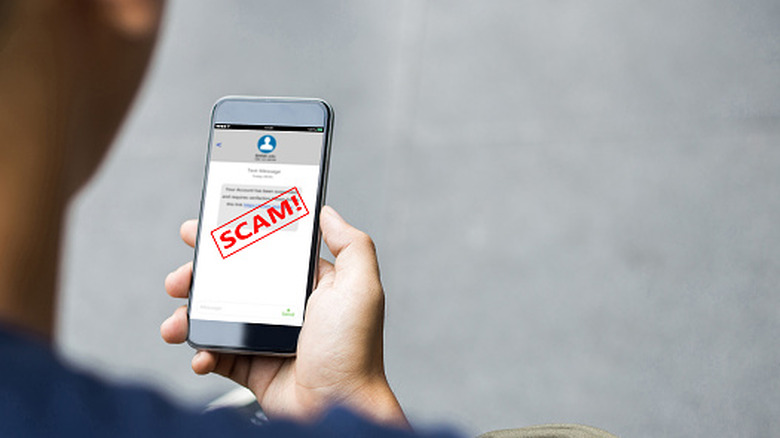
Spam text messages are rampant. Fake recruiters offering jobs, delivery updates on a package you never ordered — even the innocuous "hey, how are you?" from a number you don't recognize. They're designed to get you to respond and start disclosing information or click a link with the promise of a free gift card, perhaps, or a way to pay off your student loans.
It turns out those bogus texts are more than just annoying. The Federal Trade Commission's most recent data shows that consumers reported losing about $470 million in scams that originated with texts in 2024. Even if a scammer hasn't conned you with the offer of a sweet, sweet six-figure job that lets you set your own hours and work from home, you might be sick of seeing the notifications roll in. Luckily, Android 17 also has a feature that alerts users to scam calls to help with this by sending a real-time notification to users to confirm if the call is legitimate.
While there's no way to entirely ward off spam texts, there are settings you can adjust on your phone, and ways to report the fake messages that could reduce the number you receive. Here's how to block spam texts on your iPhone or Android.
How to block spam texts on an iPhone
If you have an iPhone, there are a few steps you can take to cut down on the number of spam texts you get. For one, you can screen and filter messages coming in from senders whom you don't know. Go to the Messages app and tap the menu button in the top right corner of the conversation list. From there, tap Manage Filtering, which will let you toggle on Screen Unknown Senders. If you toggle the switch, you'll see more options. For example, you can allow notifications if the text is time-sensitive, like a verification code. There's also a toggle to Filter Spam, which hides notifications and automatically moves them into a Spam list. Apple notes that your options might look different depending on your country and region.
Another way to manage what's hitting your phone is to turn off business alerts. These can be notifications about orders and transactions, for example. Go to Settings, then tap Apps and Messages. Again, depending on your location and carrier, you might see a few different options. One might be RCS Business Messages, which will let you turn them off. You might also see Apple Messages for Business. If you tap that, you can turn Business Updates off.
Additionally, you can limit messages to only your contacts if you go to Settings > Screen Time > Communication Limits > During Screen Time. You'll see options for managing who can contact you and when.
How to block spam texts on an Android and other tactics
If you use Google Messages, open the app, tap on your profile photo in the top right. Scroll down and go to Message Settings, and then tap Protection and Safety. From there, you can toggle on Spam protection. Google outlined several new ways it's cracking down on spam with the help of Gemini, like an optional Enhanced protection mode in its messaging platform, which uses AI to detect scams and double-check links.
If you receive a suspicious text, never click the links or reply, as doing so can expose your data. Instead, you can report suspicious texts by forwarding them to 7726 (SPAM), a feature that works in both the US and the UK. The FTC explains that this helps your carrier "spot and block" those types of messages, and you can also report major fraud directly to the agency. While third-party filtering apps exist, downloading unverified blockers is risky since some contain malware.
You might not be able to make your phone entirely impervious to spam texts, but you can at least increase the odds that the next time your phone dings, it'll be a message you actually want to receive.