

How to access the hidden developer menu on your Apple TV
Apple TV has a hidden settings menu that's easy to access, even if there's little reason to change anything.

That streamer box from Apple sitting on your TV stand offers more than meets the eye. Hidden behind the Software Updates screen, Apple TV has a secret settings menu that most users have no clue about. And unlocking this hidden menu takes nothing more than four presses of the Play/Pause button on the Siri Remote.
Now, don't get all excited yet. There isn't some magical performance boost waiting to be unlocked here. In fact, the menu mostly includes options for technical and internal use, like AppleConnect, configuration settings and VPN profiles. Despite the menu being around since the early days of tvOS, you might have missed it, no matter how long your Apple TV has lasted.
While this hidden setting is sometimes called a developer menu, it isn't the same as Apple's actual Developer Settings. The latter requires pairing the Apple TV with a Mac, which is a lot more complex than the hidden menu we're looking at today.
How to access Apple TV's hidden developer menu
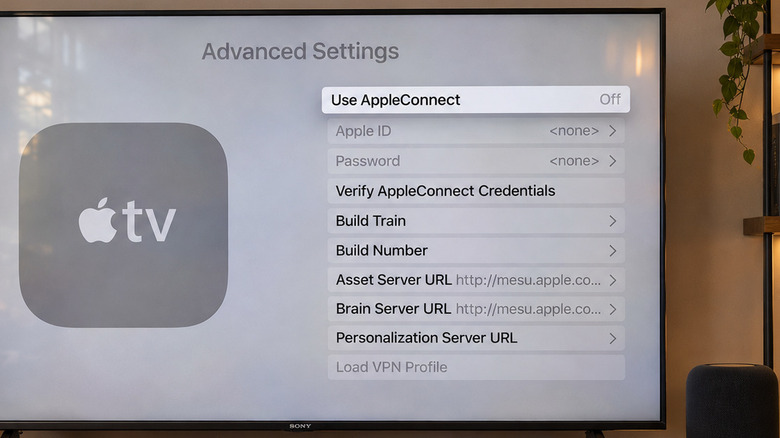
For starters, you'll need either an Apple TV HD or Apple TV 4K that's paired with its Siri Remote. The developer menu is pretty much a part of tvOS on Apple hardware and has nothing to do with the Apple TV app that you can install on compatible smart TVs.
Here's how it goes:
- Find the Siri Remote and switch on the Apple TV, then head to Settings from the Home Screen.
- Once you're inside Settings, scroll down until you find System and select it.
- From there, open the Software Updates option and just hover over Update Software without actually opening it.
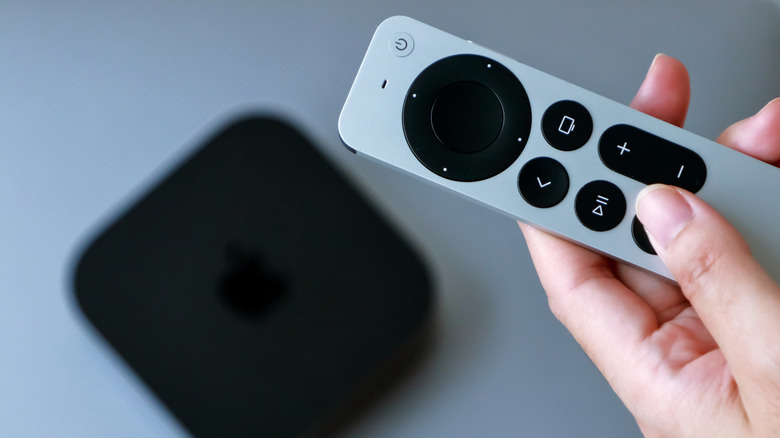
- With that option highlighted, quickly press the Play/Pause button (marked with the ▶/Ⅱ symbol) four times.
- Right after that, you should be able to see Internal Settings or Advanced Settings, so select the new entry if the menu doesn't open automatically for you.
Although how Apple TV reacts to this depends on the tvOS version, you'll most likely be in the developer menu right after the fourth press. Remember, the center button of the Siri Remote won't do the same job here as the Play/Pause button, even though it can usually be used to control playback. Apple doesn't mention this shortcut in its public software update instructions, nor does it specify which versions of tvOS offer the feature. You can use the same four presses to hide the developer menu just the way you enabled it in the first place.
What's inside Apple TV's hidden developer menu?
Honestly, there's not much here for the casual viewer to see or even use. Changing a configuration that you don't know much about could cause a problem that didn't exist five minutes ago.
What you see in the menu first is AppleConnect, the company's internal authentication feature, which has nothing to do with your personal Apple account. You'll also find configuration settings and VPN profiles here, and some older versions seem to include exposed sleep-delay settings. If you do know your way around VPNs, this menu adds some value. But since Apple added support for third-party VPN apps with tvOS 17, the easier way to use a VPN on Apple TV is to download your favorite provider's app from the App Store.
Apple's actual Developer Settings unlock tools for development and debugging, and some Apple TV enthusiasts also use them to fetch playback info and check streaming resolution. Instead of the developer menu, though, you'll get far more out of the Apple TV remote shortcut that opens the App Switcher. Just double-press the TV button, select an unresponsive app and swipe up on the clickpad to force-stop it. This saves the hassle of restarting Apple TV every time just to fix an unruly app.