

5 cool things CarPlay could be useful for
From ordering coffee to paying at the pump, some of CarPlay’s best tricks are ones most drivers never try.
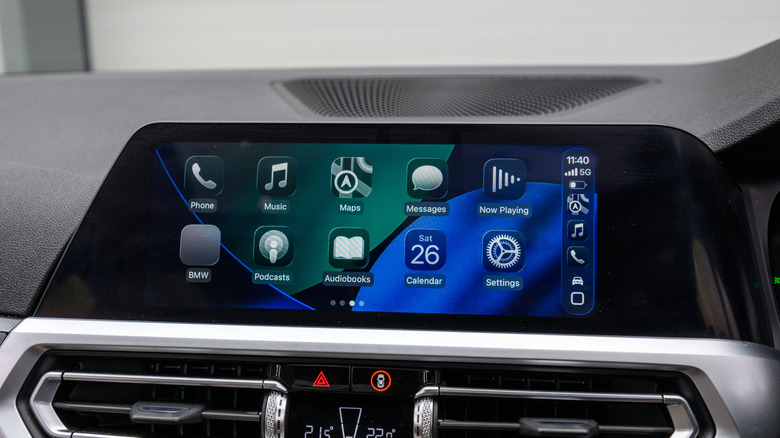
Apple CarPlay makes it a lot easier to use your iPhone apps on your car's dashboard, and it doesn't take much effort to set up. Alongside Apple's own apps like Maps and Music, you can also run third-party apps like Spotify or Waze, plus there are plenty of built-in features to enhance your driving experience.
And it does a lot more than just giving directions — features like remembering where you parked, planning routes that include EV charging stations and even using Siri AI within CarPlay. So if you have a CarPlay-compatible vehicle, here are some cool uses you should try.
1. Let your passengers take over the music with SharePlay
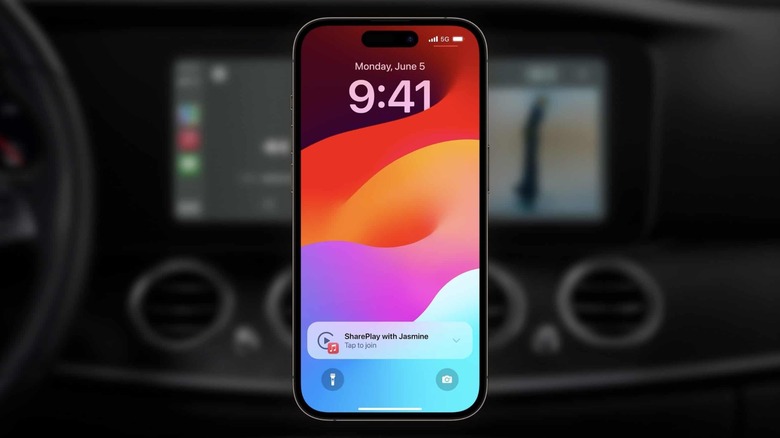
When you aren't driving alone, chances are you've gotten into a dispute over which song to play next. This is solved with the SharePlay feature, which has been available in CarPlay since iOS 17. Once the driver starts playing something on Apple Music via CarPlay, passengers can join the session using their phones and control the music themselves. Android users can jump in via a browser, too.
Setting it up is simple. With Apple Music open and playing in the car, passengers nearby will receive a notification asking if they want to join the session. If that doesn't show up, ask the driver to tap the SharePlay button on CarPlay's Now Playing screen to reveal a QR code. Now, others in the car can scan that code to add songs they want to play next.
Just keep in mind that SharePlay only works with Apple Music, though only the driver needs a subscription. Everyone else just needs a phone with Bluetooth turned on that's running the latest software. If the driver isn't subscribed to Apple Music but someone else in the car is, you can switch phones in CarPlay.
2. Ask an AI assistant just about anything
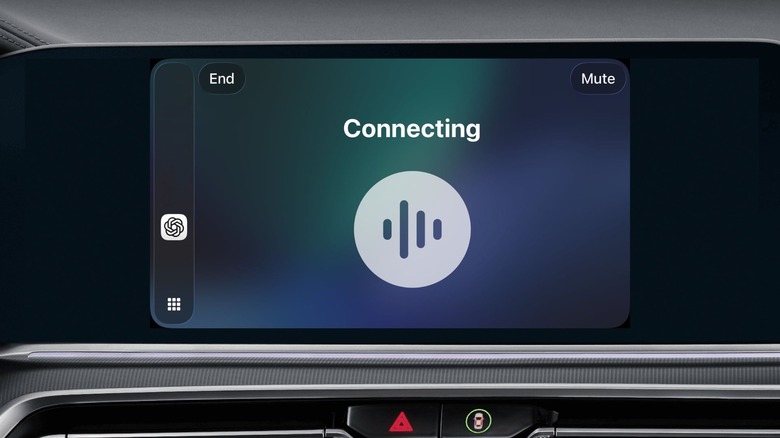
For some time, Siri was the only voice assistant allowed in CarPlay, and it became known for not working very well. That changed a lot this year with iOS 27 and Siri AI, which is also available in CarPlay if you have an Apple Intelligence-compatible iPhone.
Thankfully, Siri AI has proven to be much better than the old Siri, and it's especially useful in CarPlay for information like getting directions to an address someone sent or playing a song a friend suggested. You can use Siri AI in CarPlay by pressing and holding the Home button on the CarPlay screen or saying "Hey Siri" in supported vehicles.
But maybe you're still not a big fan of Siri AI or you want to use a different assistant in your car. Starting with iOS 26.4 (and improved with iOS 27), you can finally do so, as Apple now allows other AI assistant apps in CarPlay. They mirror the AI apps you already have on your phone, like ChatGPT and Gemini, and should appear on your CarPlay Home Screen automatically. Using them is as easy as tapping the icon for the AI assistant you want to interact with — AI apps in CarPlay are voice-only, so you can't type or enter commands like on your phone.
That said, AI assistant apps for CarPlay still have some limitations. They can't control other apps, so there's no way to use them to play songs or make calls. They also can't be set as your default voice assistant, so Siri will still be triggered when you press the voice command button on your car's steering wheel. Still, it's nice to have the option to switch to another assistant.
3. Pay for gas without reaching for your wallet
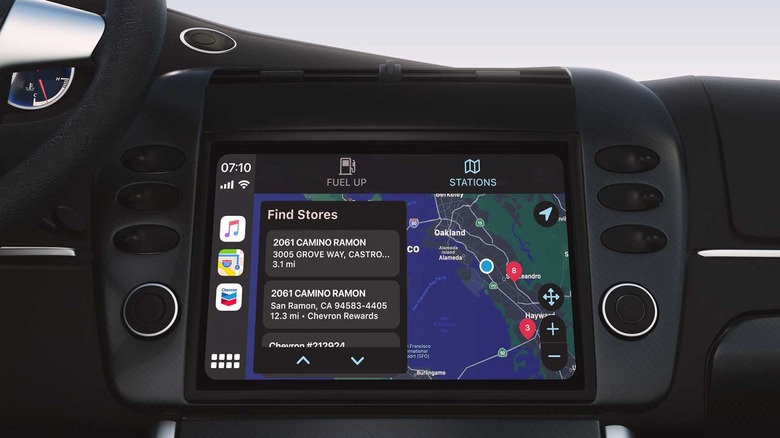
Did you know you can pay for your gas from your car's screen, without having to take out your wallet or even tap your iPhone on a card reader? The feature has been available since iOS 16, but only a few gas station chains support it, such as Chevron and Texaco in the US.
To take advantage, first download and install the gas station app on your iPhone. Next, create an account and set up a payment method before you try to use it in CarPlay (it won't work otherwise). At the gas station, open the app in CarPlay, select your pump and fill up when the app tells you to. You'll be charged using the payment method you set up on your iPhone.
If you drive an EV, CarPlay also supports charging station apps. Just make sure to stop at a station that's compatible with mobile payments, since not all of them are.
4. Order your coffee or dinner for pickup
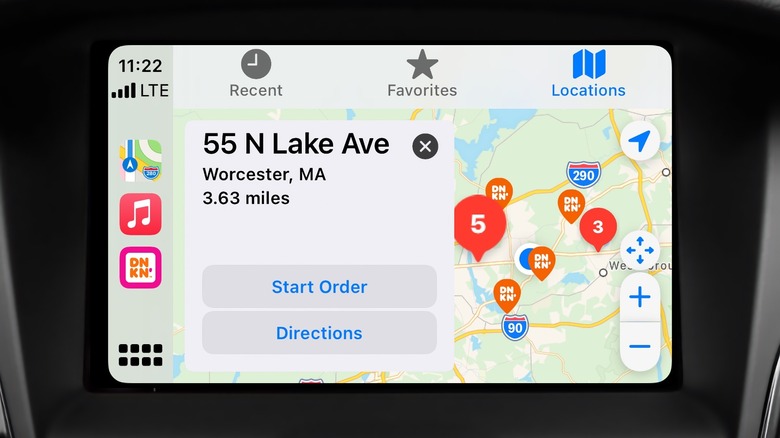
If you're planning to stop for food or a drink, you can save time by ordering before leaving using CarPlay, which works without having to pick up your phone. Some food chains, such as Dunkin', Panera and Domino's, offer CarPlay-compatible apps. The process is the same as above: install the apps on your iPhone first, then make sure you've signed into your account and have added a payment method.
If you don't see an app on your car's screen even though it's installed on your iPhone, go to Settings > General > CarPlay, select your car and make sure the app is in the Include list. Don't expect a complex interface for customizing your order, though. Since interactions in CarPlay apps are intentionally simple, these ones are designed around re-ordering your favorites or quickly picking from top choices.
5. Find and pay for parking before you arrive
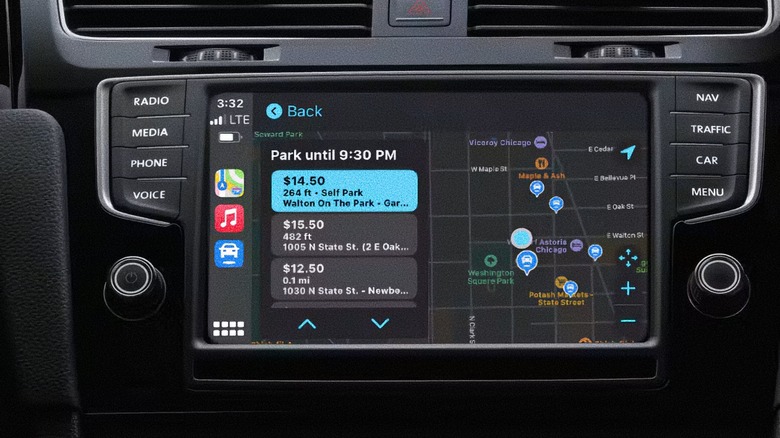
Finding a place to park is one of the worst parts of driving in a big city. Luckily, CarPlay can help you with that. Apps like SpotHero show you available parking spots near your destination, so you can book a spot before you get there. The app works in more than 400 cities across the US and Canada and is super easy to use.
Just download SpotHero from the App Store and set up your account with a debit or credit card as your payment method. Those in Europe can try EasyPark, which offers a similar CarPlay experience. Unfortunately, Apple doesn't support Apple Pay in CarPlay apps like this one, so you'll always have to manage your payment methods from your iPhone.