

5 underrated Apple Watch shortcuts you can set up in minutes
Your Apple Watch can handle directions, texts, lights and naps with just a little setup.
We may receive a commission on purchases made from links.
It's 11PM and raining. You're stuck outside a bar you'd never heard of until about six hours ago, trying to shout your home address into your wrist for the third time while someone else's Uber pulls up in front of you. Your Apple Watch could have had you on your way home with a single tap, if only you'd spent five minutes setting up a shortcut instead of doomscrolling.
The good news is you can still set one up before your next night out, and while you're at it, a few more are worth adding. Your Watch can also text your better half an ETA as you leave work, switch off the lights you always leave on downstairs when you get into bed, put you down for a 20-minute nap without disturbing you and keep its screen dark while you're driving.
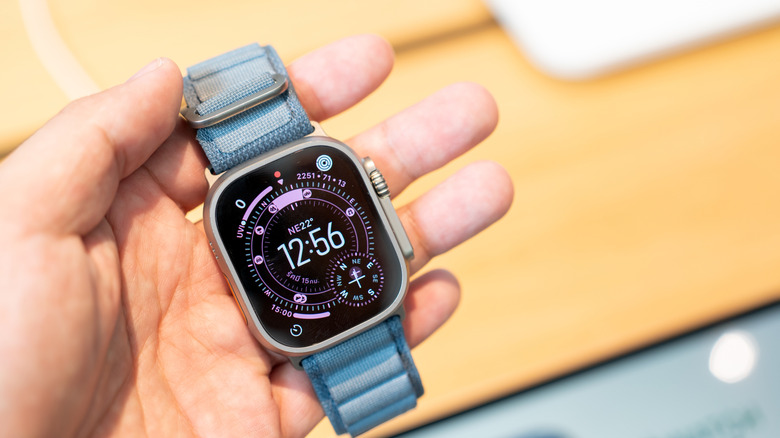
Shortcuts are made in the Shortcuts app on your iPhone, and they'll only appear on your wrist once you flip the Show on Apple Watch switch in each shortcut's settings. After you've set them up, you can run them from the Shortcuts app, a watch face complication or a Smart Stack widget (or the Action button if you've got an Ultra). If you've got an iPhone 15 Pro or newer, you can also describe what you want in plain English and let Apple Intelligence build a shortcut for you.
1. Get directions home with one tap
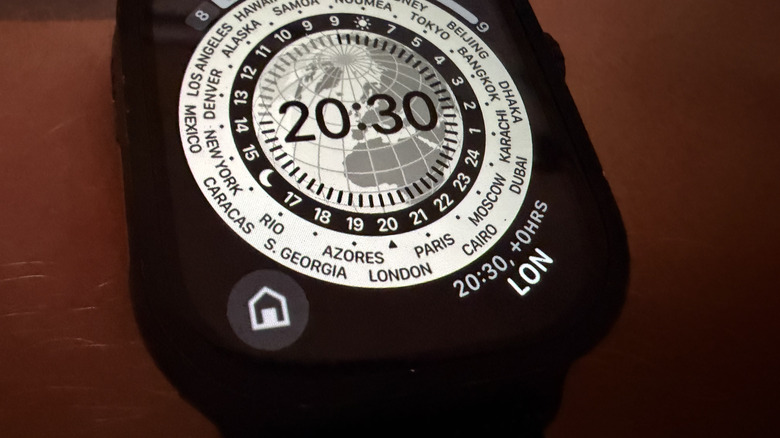
If you're out somewhere unfamiliar, after a night out or a long day at a conference, the last thing you want to be doing is dictating your full address into a tiny screen. Adding a Get Me Home shortcut helps you avoid all this.
Open Shortcuts on your iPhone, tap the plus button and search for the Open Directions action. Tap the destination field, choose Location and pick your saved home address. You can also choose walking, driving or public transit directions and your preferred maps app. To name the shortcut, tap the title at the top of the screen and select Rename, then pick a house icon and a color. Finally, tap the info button, open Details and turn on Show on Apple Watch.
To add this to your watch face, touch and hold the face, tap Edit, swipe across to the complications screen, choose a slot, scroll to Shortcuts and pick the Get Me Home shortcut you just created. A circular slot on a face like Modular works particularly well here. If your route home usually involves a stop like a school pickup, Apple has you covered: iOS 26.4 added multi-stop driving directions to the same action.
2. Text your family an ETA when you leave work
"What time will you be back?" is probably the most commonly sent text in any household. Most of the time your phone will ping with it just as you're walking to the car with your hands full. But you can set up a Watch shortcut that works out how long your journey home will take from wherever you are and sends that estimate to the people you choose.
It's quick to set up. Start a new shortcut and search for Get Travel Time in the search bar at the bottom of the screen, then set the destination to your saved home address. Add a Text action and write something like "Leaving now, home in" followed by the Travel Time variable. Add the Send Message action the same way and choose who you'd like it to go to. Since iOS 27, recipients can include groups as well as individual people.
You can make this a single-tap shortcut by switching on Show on Apple Watch and adding it as a complication or a Smart Stack widget. Run it once on your iPhone first, since it will ask permission to use your location and send messages. If you'd prefer not to tap anything, you can instead turn the shortcut into an automation that runs when you leave a saved location, like your workplace. In iOS 27, that trigger lives inside the shortcut and syncs across your other devices.
3. Switch off the house from your wrist at bedtime
You're finally home from the bar and your partner's already asleep, but you realize the downstairs lights are still on. Shouting "Hey Siri, turn off the lights!" in the middle of the night isn't exactly ideal, nor is trying to find the Home app on your Watch, which always takes longer than it should when you're pressed for time. A shortcut on your watch face does the job with one (silent) tap.
The easiest way to build this shortcut (if you've got an Apple Home setup) is to set up a scene in the Home app on your iPhone first. Give it a name like "Good Night," then set every light and outlet you want turned off. You can also add the things you want left on, like a hallway light at its lowest brightness or the thermostat at a cooler setting.
Next, create a new shortcut in Shortcuts and search the action list for Control Home. Choose the action that runs a scene, then pick Good Night. Turn on Show on Apple Watch and add it to your watch face as a complication like the others.
The same approach works for the morning. A Good Morning scene, for example, could switch on the kitchen lights, turn the thermostat up and boil the kettle if you're British. You can put that shortcut next to Good Night on the same face, which makes it easy to switch between the two. You can also set up an automation on your iPhone that runs when you stop your alarm, which handles the morning half without a single tap.
4. Start a nap timer that silences everything
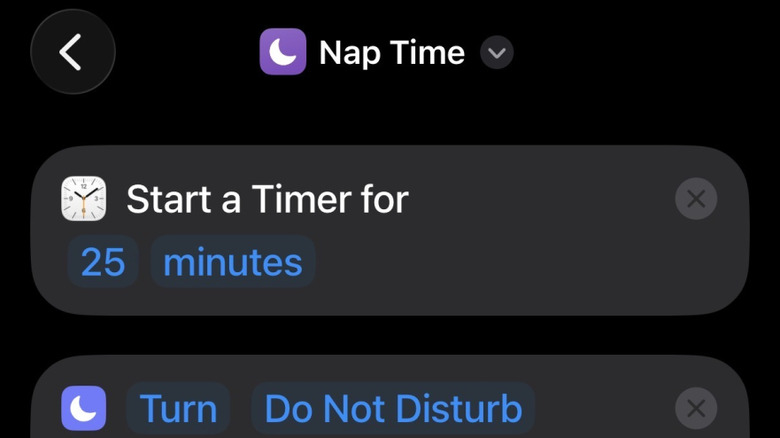
It's already easy enough to set a timer on your Watch, but setting everything up for a nap usually takes a few steps: start the timer, mute your notifications and then remember to unmute them when you wake up. If you don't mute your notifications, you can bet the group chat will come alive and buzz your wrist within 10 minutes. A simple dedicated nap shortcut can end all that.
Head to Shortcuts on your iPhone, search for the Start Timer action in the bottom search bar and set it to however long you like to nap. Twenty or 25 minutes is a sensible place to start. Then add Set Focus, choose Do Not Disturb and set it to turn off after the same amount of time, so your notifications come back on their own when the timer goes off. Name it Nap, give it a moon icon and switch on Show on Apple Watch.
If you've got an Ultra, you can use the Action button instead. Go to Settings > Action Button on the Watch, choose Shortcut and pick Nap, then press the button to start the nap timer. Otherwise, you can put the shortcut on a complication or in the Smart Stack.
You can apply the same idea to your workouts. Your Watch knows when you start one, and a recent Shortcuts update added the Fitness app to the When I start a workout automation trigger. Pair that trigger with the same Do Not Disturb action and your phone stays silent during a run or gym session.
5. Stop your Watch from lighting up while you drive
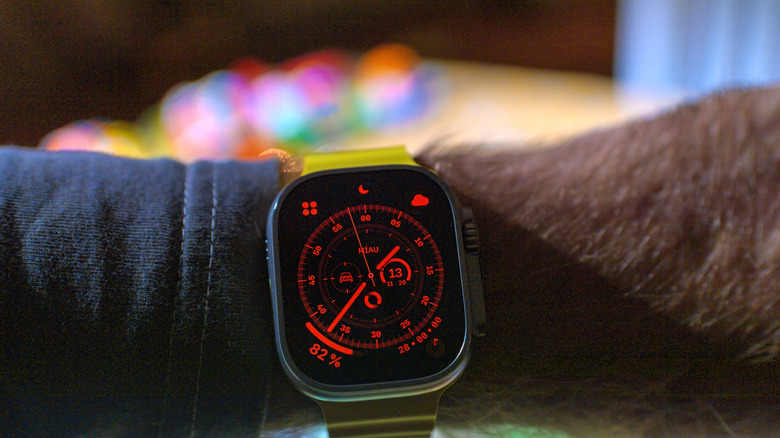
It's bad enough having modern LED headlights burn out your retinas while driving at night without your wrist also lighting up every time you turn the wheel. Thankfully, you can use Shortcuts to stop that from happening whenever your phone is connected to CarPlay.
In the Shortcuts app on your iPhone, create a new shortcut and add the Set Wake on Wrist Raise action, set to off. To also mute your Watch's sounds (you'll still feel haptic taps), add Set Theater Mode and set it to on. Theater Mode keeps the display dark until you tap it or press a button. Shortcuts may call it Cinema Mode, but it's the same thing.
You'll also need a trigger. Since iOS 27, automations live inside individual shortcuts rather than a separate tab, so add a CarPlay trigger, choose Connects and set it to run immediately so it won't ask for confirmation every time you get in the car. Next, duplicate the shortcut, switch Wake on Wrist Raise to on and Theater Mode to off, and set the trigger to Disconnects so your Watch goes back to normal when you park.
The same pair of shortcuts will work with your car's regular Bluetooth connection or Driving Focus if you don't have CarPlay. Once your iPhone is talking to the car, you can add an intro to Apple CarPlay using Shortcuts, which runs from the same trigger.
In all, setting up the five shortcuts takes roughly 15 minutes, and each one saves you a few taps every day. The last one can also help cut down on driving distractions.