

How to set up surround sound with Apple TV 4K and HomePods
Surround yourself with Apple’s premium home theater experience — for a price.
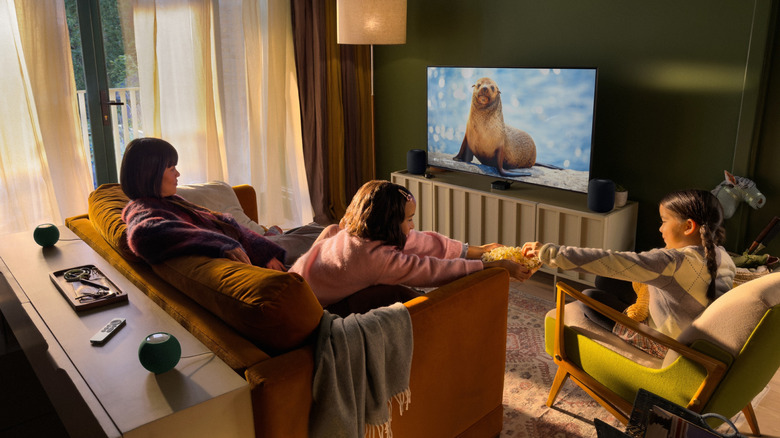
The new Apple TV 4K (4th generation) has been generating buzz ever since it was announced at the Cupertino company's Welcome Home Event in October 2026. One of the most noteworthy changes is to its surround sound capabilities, in which users can create an immersive cinematic experience in their own living room. Unfortunately, while many of the 4th generation's new features will be available for previous models, including its enhanced Siri AI system, Apple's venture into surround sound is not backwards compatible.
To set up your home theater's surround sound system, you will need the fourth-generation Apple TV 4K and up to four 2nd generation HomePods or HomePod mini 2s. Apple's support page also states that you can pair two sets of either home speaker, but the front pair and rear pair must match (two HomePods and two HomePod mini 2s). Before setting up your system, update your devices to the most recent software. If you only have two speakers, either the HomePod or HomePod mini 2, you can still use them to create a home stereo setup.
Those wanting to create this home theater setup from scratch will have to pay a pretty penny to do so. Officially released on November 13, 2026, you can purchase the 4th generation Apple TV 4K on Apple's website or at your local Apple Store for a hefty $299. But true sticker shock may set in when one considers the cost of four smart speakers, with the HomePod (2nd generation) and HomePod mini 2 costing $349 and $149, respectively. All told, that could cost you up to $1,700 for Apple's most advanced audio experience. Whether the system's various AI and quality updates help soften the blow is up to you.
First things first: How to prepare your devices
The first thing you should do is assign your Apple TV 4K and HomePod speakers to the same room in the Home app. To assign your Apple TV 4K to a room, turn on your Apple TV and open the Settings app. Next, select AirPlay and Apple Home, navigate to the Select a Room option beneath Apple Home and assign your Apple TV accordingly.
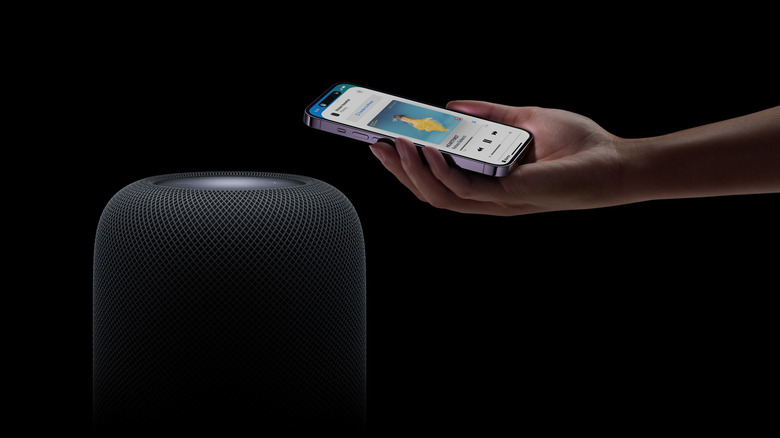
Next, you need to assign your speaker system. To add your HomePod (2nd generation) or HomePod mini 2, turn on your speaker and open the Home app on your iPhone or iPad. Tap the Add button and select Add Accessory. You will be prompted to scan a code or hold your device near the speaker. When it appears, tap the speaker name and tap Allow when prompted to Add Accessory to Network. Finally, choose the same room as your Apple TV 4K, name it, tap Continue > Done. Repeat this process for all four speakers.
You can change the room of an existing HomePod in the Home app on your iPhone or iPad. Simply open the Home application and hold your finger down on the HomePod whose location you would like to change. Next, select the Accessories Settings button with the gear symbol. Press the Room tab and select the room of your home theater. You can also add a new room in this page by tapping Create New. Once you have added all your devices to the same room, you are ready to set up surround sound.
Setting up your surround sound system
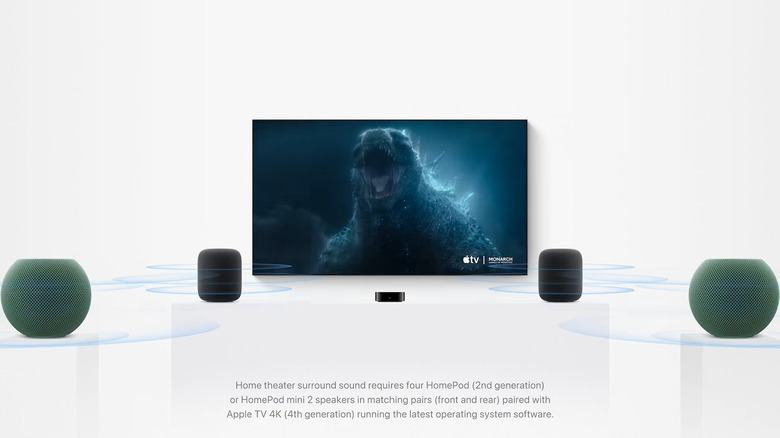
Now, it's time to set up your surround sound configuration. Go to your Home app, tap a HomePod and select the gear icon at the bottom. Then, scroll until you find the Create Home Theater option and tap the HomePods that you want to group into your home theater system. Once grouped, tap the checkmark at the top corner. You should now see a notification instructing you to continue the set up process on your Apple TV.
Next, turn on your Apple TV. Follow the onscreen prompts instructing you on where to place your speakers. If using a combination of HomePods and HomPod mini 2 speakers, Apple suggests that you place the larger speakers at the front of the room. Once in place, select Start Tuning. Your home theater will now begin tuning to your space by playing a series of tones. Once finished, follow the on screen instructions confirming your speaker's placements and color selections before hitting Confirm. Now you are ready for an immersive home theater experience.
If you'd rather create a stereo system using two Apple smart speakers, visit to your Home app, select your HomePod, and tap Settings. Next, tap Create Stereo Pair and follow the onscreen instructions. From there, follow the steps above to assign your stereo to the same room as your Apple TV 4K. Once finished, turn your Apple TV on and follow the onscreen prompts until you are prompted to Use as TV Speakers.