

Checking your Apple Watch's battery health is easier than you think
It just takes a couple of clicks and taps.
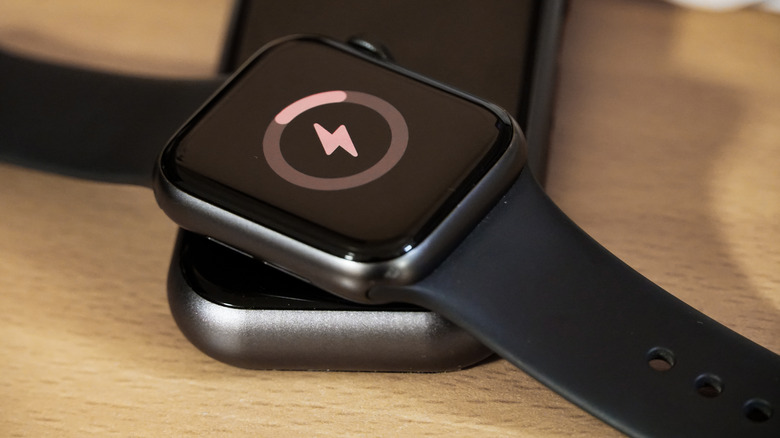
At 50 hours of normal use on a single charge and 84 hours in low power mode, the new Apple Watch Ultra 4's battery life is eye-popping, but nothing lasts forever.
Whether it's an iPhone, iPad or Apple Watch, any device's lithium-ion batteries get weaker as they age. This leads to less time between charging sessions, less overall battery capacity and generally worse performance.
Although Apple says every model starting from the Series 5, SE and Ultra has software that reduces the risk of poor performance in these cases, you should still keep an eye on your battery health. So whether you ultimately decide to replace it or buy a whole new watch, these are the steps you need to take to check the health of your battery.
How to check
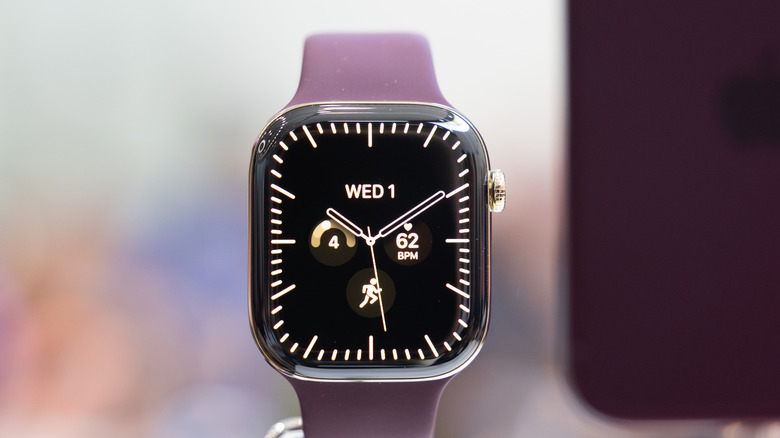
Checking your Apple Watch's battery status is simple. Go to Settings > Battery > Battery Health. Here, you can activate optimized battery charging and learn about your maximum battery capacity. A lower capacity will likely lead to fewer hours of use before you need to charge it. Similar to an iPhone, making a trip to the Genius Bar might be needed once the Apple Watch battery's max capacity dips below 80%.
Luckily, if you don't keep a close eye on it in the settings menu, you will still get an alert letting you know when the battery requires service.
As for the optimization feature, it is supported on models as old as the Series 6, Apple Watch SE and the first Ultra. Turning it on charges the device based on your typical charging habits to improve the lifespan. It also delays charging over 80%, keeping the battery level between 75% and 80%. The goal is for it to be fully charged by the time you remove it.
How can you preserve the battery life?
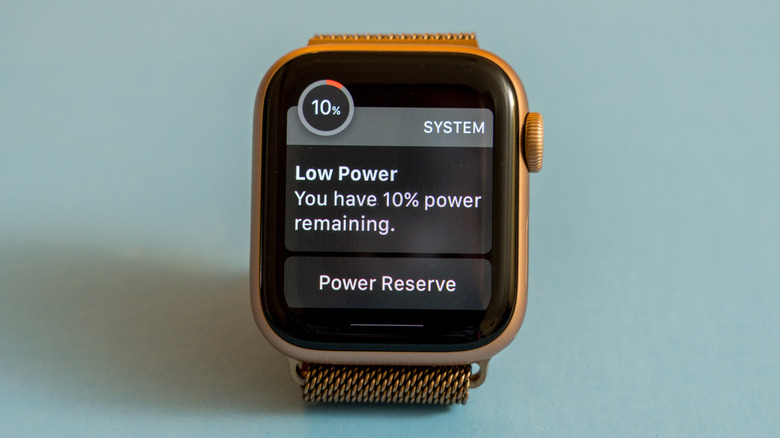
Beyond updating your device to the latest watchOS, you can take other steps to preserve an Apple Watch's battery life. For starters, turn on Low Power Mode to deactivate oxygen monitoring, always-on display, and other features you might not really use, which drain your battery in the background.
When tracking a run or walk, disabling the heart rate sensor can help in the long run; turn on Power Saving Mode under the Workout section in the iPhone's Apple Watch app. While it might lead to some inaccurate health metrics, it'll help preserve the battery's health.
You can also disable features like Wake on Wrist Raise for preservation. Press the Digital Crown, then head to Settings > Display & Brightness and scroll down to Wake. From there, you can turn it on or off. You can also do this temporarily by turning on Theater Mode, which will prevent the screen from turning on whenever you make a slight move or raise your wrist.