

What does the yellow light on your Alexa device mean and how do you clear it?
Here’s what your Echo's yellow light is trying to tell you and what to do about it.
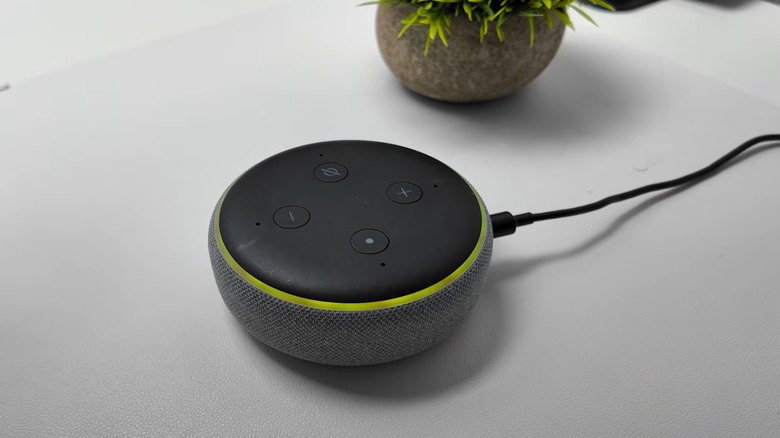
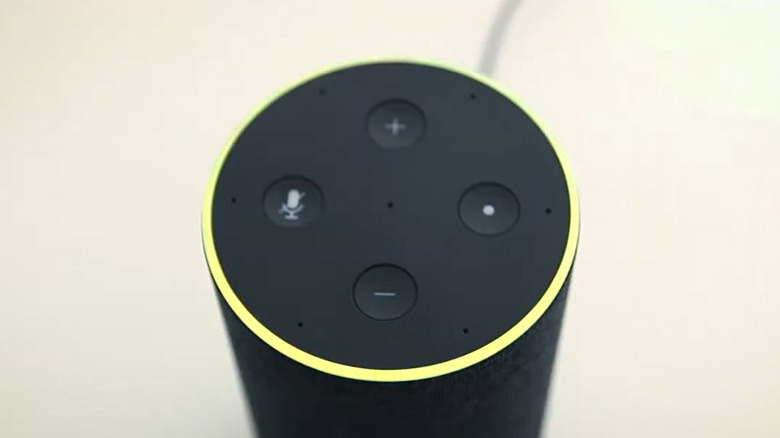
Your Amazon Echo's light ring is a valuable information hub. And while most users are familiar with the recognizable blue ring, many don't realize that the light ring can display nine different color notifications, some of which are intended to grab your attention. If you see a flashing yellow ring around your Echo device, don't panic: a yellow light emanating in slow bursts every few seconds means that Alexa has a message or notification it would like to share with you.
Introduced in 2017, this notification system transforms your Echo into a proactive assistant, capable of alerting you to everything from breaking news and calendar reminders to notifying you when Amazon has shipped your latest package. It is also useful for taking advantage of some of Alexa's more advanced features, such as Alexa for Shopping's price-drop alert tool. Ultimately, customizing your Alexa notification settings is the key to maximizing your Echo's functionalities.
If your device begins flashing its yellow light, you can easily clear the issue by asking Alexa a question regarding your notifications or messages. For example, try "What notifications do I have?" or "What messages do I have?" From there, Alexa will recite the list of relevant notifications, which you can respond to as you see fit. You can also move through your notifications using simple phrases (such as "next" or "repeat").
Managing your notification settings
You can edit notification settings via the Alexa app on your phone or tablet. Tap the More symbol, which looks like three horizontal lines, and select Settings (the gear icon). From there, navigate to Notifications. In this section, you can toggle the features, services and apps you would like to enable or disable notifications for.
One setting to customize is how Alexa interacts with reminders. If the flashing yellow light is for a reminder you have missed, you can clear the notification by asking Alexa, "What are my reminders?" Then, you can issue a series of helpful commands, including asking Alexa to turn off, dismiss, snooze or reschedule your reminder. To change reminder notification settings, navigate to the Notifications section of your Alexa app. From there, select Reminders on this Device and toggle your Notifications on or off.
Another useful notification center is your Alexa Skills hub. Alexa Skills are voice-activated applications that expand Alexa's capabilities. The apps span a range of functions, including Health & Fitness, Productivity, Smart Home features, Sports, Education and even Trivia games. To edit your Alexa Skills notifications, open the Alexa app, then navigate to More > Skills & Games. From there, select Your Skills > Settings > Manage Account Permissions, toggle Notifications on or off and select Save Permissions.
You may also receive a notification if your Alexa-connected smart camera or doorbell detects a person, a package or a similar camera event. To manage these alerts, return to your Alexa app and select Devices. From there, select your connected camera and tap Device Settings. Next, toggle Person or Package Detection Announcements to your desired setting. Now, when your Alexa+ answers the doorbell, you'll have a yellow notification ring waiting for you.
A guide to your Echo's light scheme
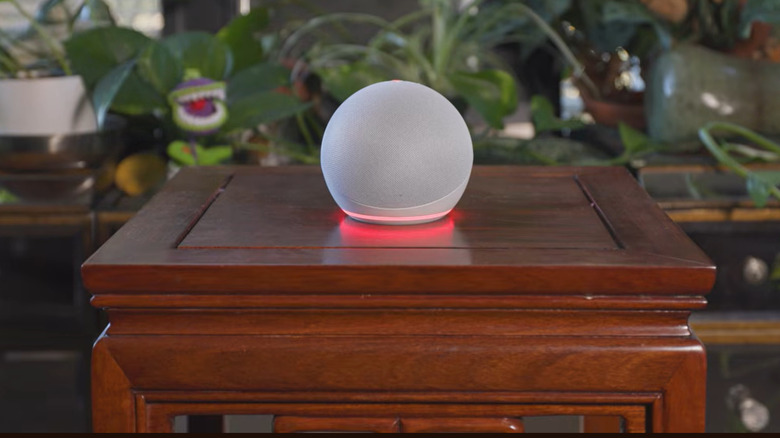
Your Echo uses a range of lights to indicate its status. You are likely familiar with the iconic cyan light, which tells you Alexa is listening and glimmers whenever Alexa has heard and is processing a request. The cyan ring will also shimmer whenever your device receives a software update. A teal-blue light, on the other hand, signals that Alexa is waiting for you to issue a command. If you see the two shades of blue spinning around the outer ring, your device is likely starting up or restarting after a completed software update.
A red ring shows a key functionality is turned off. Appearing when you press the microphone on/off button, for instance, it tells users that the device's microphone is disconnected. To get rid of the light, simply press your microphone button again. For an Echo with a camera, a red light bar indicates that the device will not share your video.
If you see a bright orange light spinning around the outside edge of your Echo, the device is either in setup mode or trying to connect to the internet. A pulsing green light, meanwhile, means that you have an incoming call. Once you answer the call, the green ring will begin to spin. The effect is also used for active Drop In intercom sessions. A brief purple flash means that your device is in Do Not Disturb mode. During setup, it indicates Wi-Fi issues. Lastly, a white light shows the volume level whenever you adjust it.