

What does the shield icon mean on your Samsung Galaxy?
It's a shield against battery degradation, not security threats.
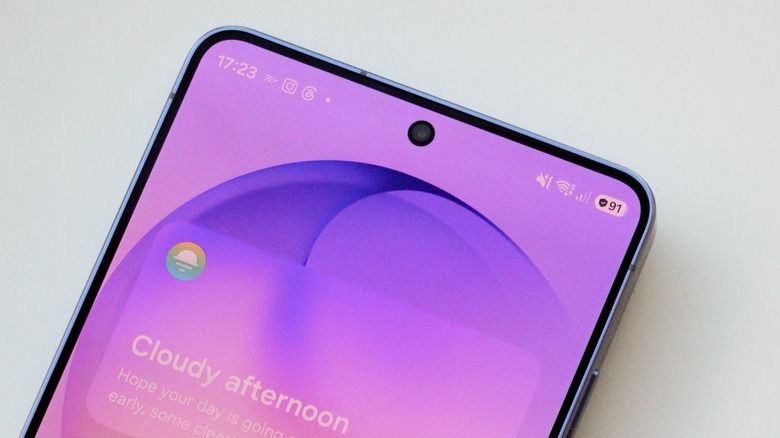
While the shield icon next to the battery symbol on your Galaxy phone might suggest a security feature, it's actually related to the battery. Modern smartphones have many features designed to extend the life of the battery, from temporarily pausing charging to intentionally limiting it. And depending on the phone you have, these features may be enabled by default.
That's the case with Samsung Galaxy phones that have Battery Protection. If you don't understand how this works yet, we'll go through everything you need to know about it.
How Battery Protection works on Galaxy phones
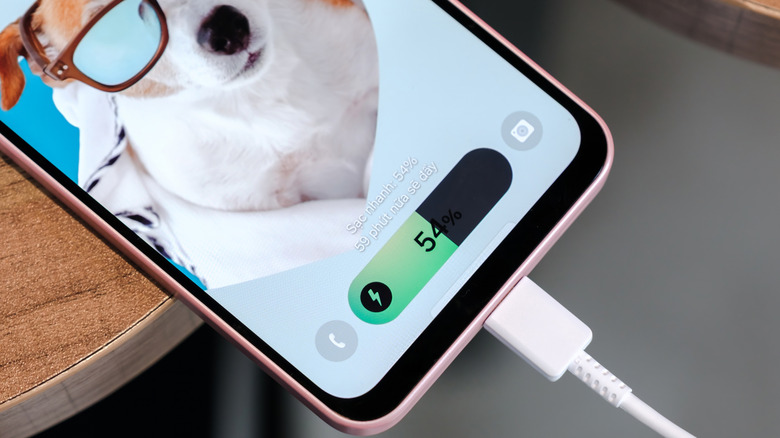
Whenever you see the shield icon on your Galaxy's battery indicator, it means that Battery Protection is on and active. When this is the case, the phone limits how much the battery charges, instead of charging it fully. This is all because of how lithium-ion batteries age.
Modern batteries experience more stress when they remain at their highest charge levels for long periods, which leads to faster battery degradation. Thus, leaving your phone plugged in for hours when the battery is at 100 percent isn't ideal in the long run.
That doesn't mean you're damaging your phone by charging it to 100%, though. If you'll be out all day away from a charger, you'll want a full charge before heading out. Phone batteries are built to last, and you probably won't notice the effects of battery degradation after a few months of use. But after keeping the same phone for a couple of years, the effects become noticeable. Thus, companies like Samsung have developed features to slow down battery degradation.
Battery Protection offers different modes. Basic is the least aggressive, and the one most people should use. When the battery charge reaches 100 percent, charging stops even if you leave your phone plugged in. As soon as the battery level drops to 95 percent, it will automatically start charging again.
Maximum, meanwhile, has you choose exactly when your phone will stop charging. There are options ranging from 80 to 95 percent; the lower the level, the more you'll protect your battery in the long run. Of course, this also means you'll have less battery life on a single charge.
How to set a charge limit, and whether it's worth it
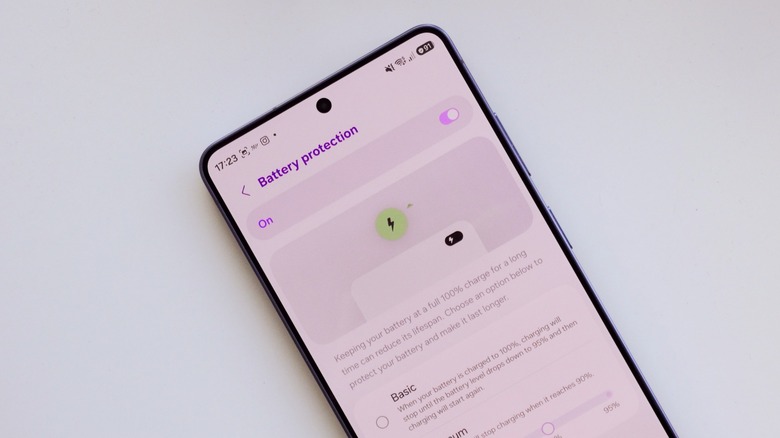
To change your Battery Protection options, go to the Settings app on your Galaxy and look for the Battery menu. Tap Battery protection and toggle the switch on or off as desired. Assuming you enable it, choose between Basic or Maximum — selecting Maximum will also show a slider for setting the charging level cap. There's also a third option called Sleep Time Protection, which learns your usage habits and stops charging at 80 percent overnight. It resumes automatically to bring your phone to a full charge just before you wake up.
Whether you should use Battery Protection depends on your power habits. If you tend to leave your phone plugged in overnight or on a desk charger all day, it's worth turning on this feature. You probably won't even notice it in action, and your phone will likely reach a full charge before you need to unplug it. As a result, the battery will remain healthy for longer, which is especially important if you plan to keep the same device for years.
If you don't have a set charging routine, it might be worth keeping Battery Protection turned off. Long trips or battery-intensive activities often require you to constantly recharge your phone, so it's a good idea to have it reach 100 percent as quickly as possible in those cases.
The good news is that you can change the option whenever you need to, so there's no need to stick to just one battery mode. Changing some Android settings can help improve battery life, too.