

Siri can index more of your personal data — here's how to limit it
If you’re concerned about Apple’s new digital assistant, here’s how you can restrict its access to your data.
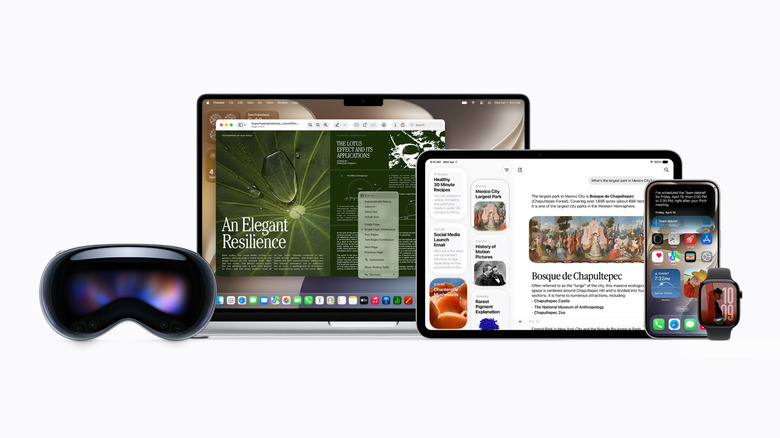
With the release of iOS 27, Apple has finally begun rolling out its long delayed redesign of Siri. You'll need to join a waitlist before you can get Siri AI, but once you gain access to the new digital assistant, you're likely to find it's a significant leap over its predecessor. Engadget's Mat Smith found the new Siri much improved when he tested it on the iOS 27 beta, thanks to its ability to deliver smarter, more personalized responses.
However, there is a downside worth mentioning. Apple partnered with Google to train the new large language models that power Siri AI's features. And as with any AI system, the new Siri requires a great deal of data to work at its best, and that data comes from you(r phone).
How does Siri AI access data from your apps?
The reason Siri AI can provide a more personalized experience is thanks to a framework called App Intents that allows Apple Intelligence tools, including Siri, to access data from the apps on your Apple devices. When you enable Siri AI on your iPhone, iPad or Mac, Spotlight and Siri are unified under a single interface. By default, when you ask Siri a question, it will search through your Apple apps, including Notes and Messages, to pull information that might be relevant to your prompt or query. If a developer has chosen to support App Intents, Siri will be able to scan through their apps too.
Siri AI relies on a combination of on-device models and Apple's Private Cloud Compute (PCC) infrastructure, meaning the assistant will sometimes offload your data to a remote server for processing. Apple says it does not store any data sent to its PCC servers after processing a request, and that it can't even see the data. Still, you might feel uncomfortable about sharing data regardless. Thankfully, there are ways you can control what Siri can index.
Restrict Siri AI's access to content inside your apps
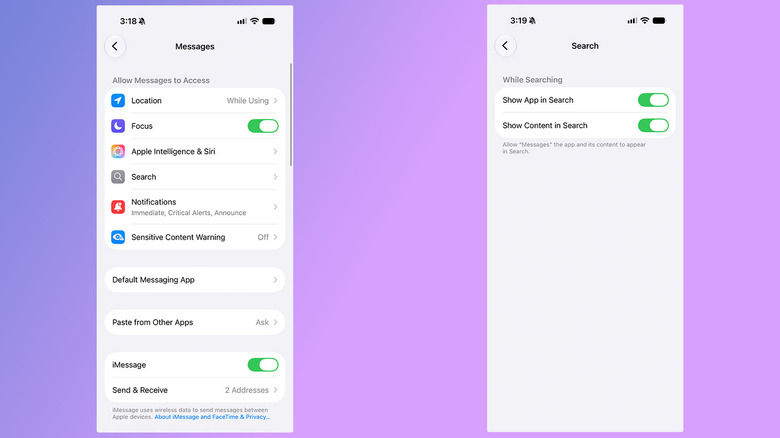
As mentioned, Apple has left it up to developers to decide if Siri AI can access the data people generate inside of their apps. That means as long as they allow iOS 27's Spotlight tool to index the contents of their apps, Siri AI can in turn access and surface that information for you as a user. However, you still have control over the process, and can ultimately decide to restrict Siri from accessing your apps. To do so, follow these steps:
- Open the Settings app.
- Scroll down and tap Apps.
- Select the app you want to restrict Siri from accessing.
- Tap Search.
- Toggle off Show Content in Search.
After you disable Show Content in Search in relation to a particular app, Siri won't pull information from that app, even if you ask it to do so directly. For example, if you disable indexing of Messages, and ask Siri to summarize a series of messages from your friend, the digital assistant will tell you it can't find those messages.
In the Apps settings menu, you may have noticed a collection of options grouped under "Apple Intelligence & Siri." For the purposes of this guide, you can leave those alone; they don't have privacy implications. Instead, they primarily control where iOS might suggest an app for you. For instance, if you disable the "Suggest App" option, you won't see that specific app among the "Siri Suggestions" iOS generates when you access your iPhone's search shade. The "Learn from this App" option sounds nefarious, but it merely allows iOS to see how and when you're using your apps so that it can tailor when it surfaces those apps for you.
On-screen awareness
Even after you restrict Siri's ability to search through your apps, you can still get it to help you with situations requiring contextual knowledge on a more ad-hoc basis. A feature called on-screen awareness allows Siri to read the contents of screenshots and images. This can be useful from an accessibility standpoint, or if you want Siri to summarize a lengthy article or message thread. Just note if you snap a screenshot and ask Siri to interpret it, it might be sent to the company's PCC servers.
Ensure you're not sharing Siri recordings with Apple
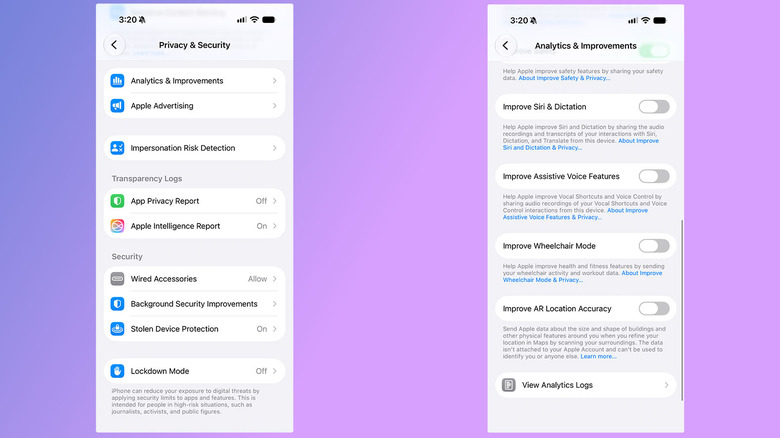
By default, Apple won't collect or use the data from your interactions with Siri to train future versions of the virtual assistant. But as part of your iPhone's setup process, you might have accidently opted into sharing your Siri recordings and transcripts with the company. Either way, it's worth checking to confirm your Siri data isn't being used for model training.
- Open the Settings app.
- Tap Privacy & Security.
- Scroll down and select Analytics & Improvements.
- Disable Improve Siri & Dictation if turned on.
Disable Siri AI altogether
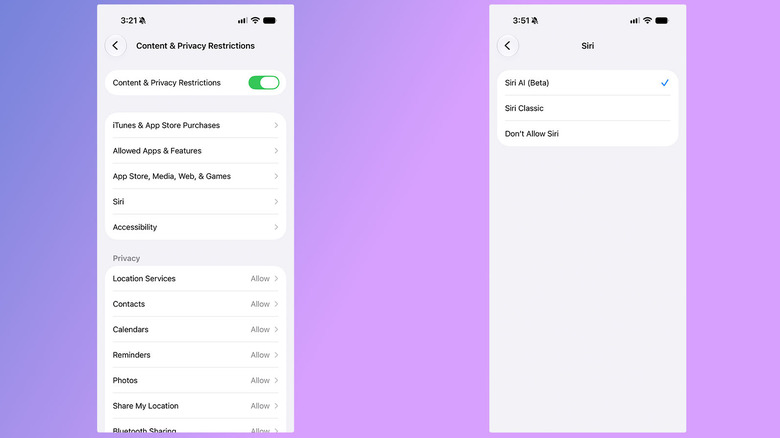
One final option worth mentioning is that you can revert to the older version of Siri. This gives you a way to continue using apps like CarPlay with your voice while limiting your privacy exposure. Unintuitively, however, you'll find the option to do this hidden inside the Screen Time section.
- Open the Settings app.
- Tap Screen Time, followed by Content & Privacy Restrictions.
- Enable Content & Privacy Restrictions.
- Tap Siri.
- Under Allowed Siri Version, select Siri Classic.
Alternatively, you can disable Siri entirely by following the steps below.
- Open the Settings app.
- Tap Siri.
- Scroll down and select Turn off Siri.
If you want to restrict any other part of the Apple Intelligence suite, Apple has helpful support page on the topic.