

The CarPlay settings you may want to change after setting it up
Make it your own.
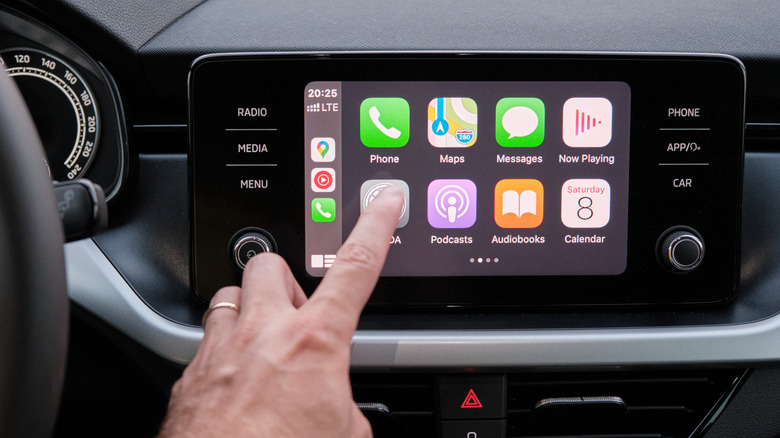
If you're looking to add some smart functionality to your car, setting up CarPlay is one of the easiest ways to get started. Whether you're using a wired connection or doing it over Bluetooth, CarPlay only takes a few seconds to set up. You'll have access to your navigation and music apps in no time with a user interface that feels familiar. As it is with many of Apple's other devices and services, the out-of-the-box CarPlay experience is good enough that most people might not feel the need to mess around with any settings.
That said, CarPlay lets you tweak a few options that change the way it looks and behaves. For starters, you can pick a different wallpaper by navigating to Settings > Wallpaper or switch from the Always Dark theme to Automatic by heading to the Appearance submenu. You can also increase or reduce the text size by navigating to Settings > Accessibility > Text Size. There's an option to make the text bold as well.
You can also add, remove or rearrange apps on CarPlay's home screen. This customization happens on your iPhone — navigate to Settings > General > CarPlay, select your car and under the "Customize" section, tap on Apps. Dragging an app to the top will bring it to the very first page of apps on CarPlay. If you use widgets, here is also where you can edit the widget stacks to include some of your favorite ones.
Set up Driving Focus with CarPlay
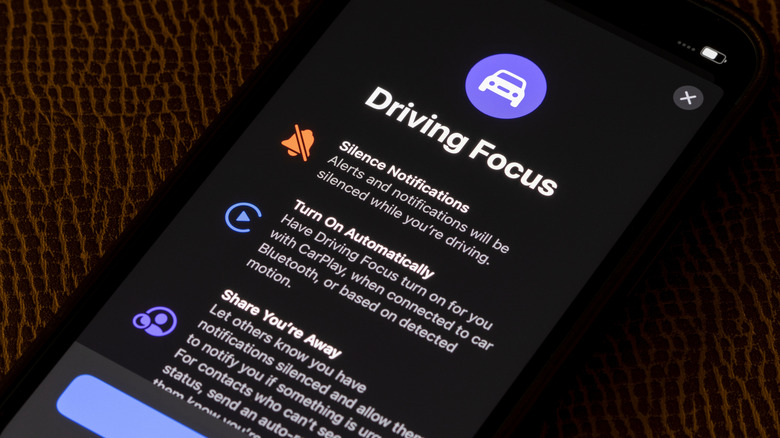
Focus mode on the iPhone could prove to be an extremely underrated utility if you've never used it to mute distracting apps during work hours (or annoying Slack pings during your time off). You can create focus modes for all sorts of activities — driving being one of them. iOS actually has a pretty well-thought-out preset made for driving, which you can add by navigating to Settings > Focus > Add and selecting Driving. You can choose to have Driving Focus enabled automatically when your iPhone detects motion or connects to your car's CarPlay system.
Notifications from all apps are automatically silenced when your iPhone is in Driving Focus mode, though you can add exceptions for people who still want to call you. You can set up an auto-reply message to be extra courteous to those who try to reach you while you're on the road. Plus, if you have Siri set up to announce notifications, CarPlay will read incoming notifications aloud. To turn this feature on, navigate to Settings > Notifications > Announce Notifications > CarPlay and turn the toggle on.
Starting with iOS 26, you can see more information on your display if you navigate to Settings > Display > Smart Display Zoom in CarPlay to turn it on. It's designed to better accommodate more information on your car's screen by scaling down elements if there's enough room to do so on larger screens. If you do prefer larger icons and text, make sure Smart Display Zoom is turned off.
Enable Voice Control for CarPlay
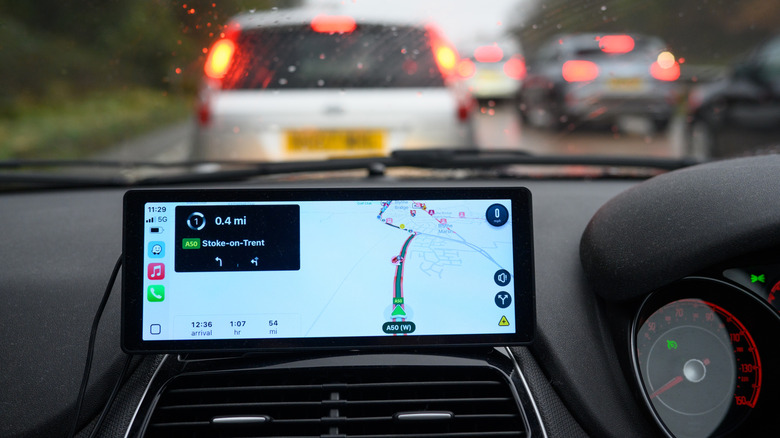
The last thing anybody wants to do while driving is to mess around with a touchscreen trying to hunt for the right button on Google Maps. Siri, therefore, becomes more valuable than ever when you're using CarPlay. You can summon the assistant using the usual "Hey Siri" phrase or by pressing the voice command button on your steering wheel. There is another option, however, that lets you control some of the more basic CarPlay functions without having to summon Siri first.
Voice Control can be turned on in CarPlay by heading to Settings > Accessibility. You'll spot a blue waveform on the screen when the feature is activated. Now, you can simply talk to your car to perform basic actions like opening an app or going back one page. For instance, saying "Open Spotify" will launch the app, and following it up with "Play" will start playing whatever you had queued up. Voice Control works independently of Siri, but if you do need to summon the voice assistant, just say, "Open Siri."
Another accessibility feature you'll find in CarPlay settings is Sound Recognition. With the feature active, your iPhone listens for any car horns, sirens or baby crying sounds and alerts you by displaying a message on your car's infotainment screen.