

The pros and cons of using an iPad as a laptop
The iPad can be a sleek and versatile replacement for a laptop, but there are some drawbacks to know about.
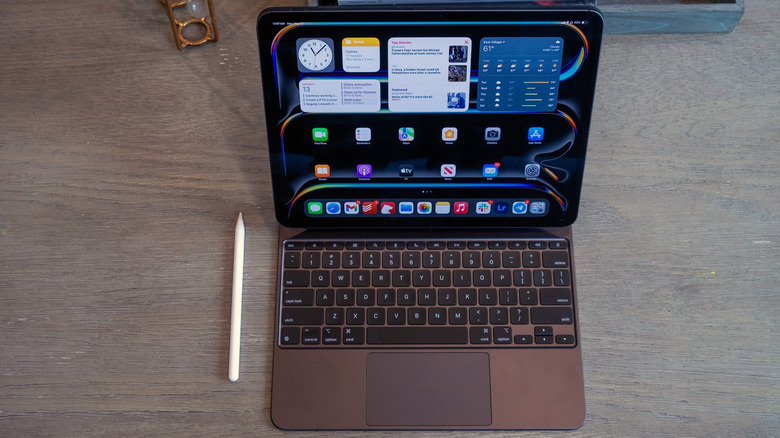
People have been asking whether an iPad can replace a laptop for as long the tablet has existed. While the answer in the first few generations was "only for the most casual users," it's become more nuanced since then. Today, whether you're casual or professional, it depends on what you expect out of a computer and how much friction you're willing to deal with.
For work like email, web browsing, video calls and writing, you won't miss much by using an iPad instead of a laptop. With iPadOS 26 and later, Apple's updated windowing system makes it even easier to forget you're using a mobile device. (That is, if you also have a quality keyboard and trackpad.)
But if your needs extend beyond those basic tasks, the iPad becomes a less convincing answer. While it can do almost everything a laptop can, big gaps in software, Apple's closed ecosystem and the iPad's touch-first nature could lead to more awkwardness than you'd like. Think of it as replacing a laptop brilliantly about 90 percent of the time, with a few frustrating exceptions making up the remaining 10 percent.
Where the iPad wins
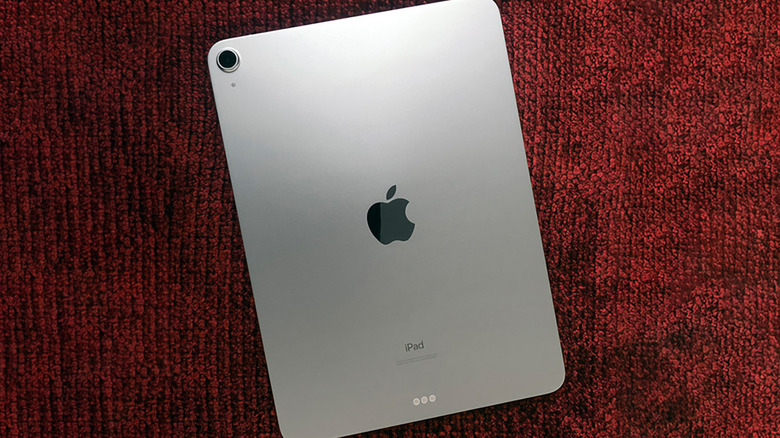
On a hardware level, today's iPads can function a lot like a Surface Pro. Use one on its own, and it's a sleek, portable tablet with a large, high-resolution display (and a much better touch-first app selection than the Surface). But slap on an Apple Magic Keyboard or similar third-party accessory, and it becomes a laptop-like device. Adding an Apple Pencil makes it suitable for full-fledged digital drawing, note-taking or PDF annotation. No dedicated laptop can match that level of versatility.
The iPad wins easily on streaming videos, reading and browsing photos. A premium tablet provides a thin, lightweight window into your favorite Netflix shows, books or articles. You can hold it as close or far away as you like, or prop it up — there's no permanent keyboard to contend with. On the portability front, the iPad is unbeaten.
iPads also give you the option of a cellular connection so you can stay online even away from Wi-Fi (and without using your phone as a hotspot.) Apple is rumored to launch its first cellular-compatible laptop before long. But considering this will likely be part of an "Ultra"-expensive MacBook that also has a touchscreen, the iPad will presumably remain the more affordable option for 5G connectivity.
Drawing, photo editing and handwriting are all right at home on the iPad, giving you a more immediate connection to what you're creating or working with. Although they aren't always on par with their desktop equivalents, apps like Procreate, Photoshop, Lightroom and DaVinci Resolve make creative work possible without a "real" computer.
Performance isn't much of a concern. Although Apple's M-class iPads aren't necessarily more powerful than their MacBook counterparts, they're essentially peers on a raw hardware level (at least if you set RAM aside). As our M4 iPad Air and M5 iPad Pro reviews found, these two devices (especially the latter) have far more processing power than most tablet workloads require, with enough horsepower for heavy multitasking and demanding creative apps. In practice, the biggest bottleneck is usually iPadOS itself.
Thankfully, some of the old complaints about iPadOS have diminished, if not disappeared. iPadOS 26 finally introduced a proper windowing system that lets you freely resize and move app windows. (You can still use the old full-screen-only mode, too.) Applications now have a Mac-like menu bar. The Files app is more capable and closer to a true Finder replacement. Preview even made its way to the iPad.
That combination makes Apple's tablet a much more potent laptop replacement than it was just a couple of years ago. The iPad feels more like the new kind of personal computer Apple wants it to be.
Where iPad workflows become frustrating

The iPad's biggest downsides as a laptop replacement often appear as the little details. macOS has evolved over decades as a desktop operating system, with a mature file system, a wide range of accessories and versatile keyboard shortcuts. (Even more so if you use a third-party app like Alfred, Raycast or Keyboard Maestro.) If you're a PC user, you can say much of the same about the Windows ecosystem.
Those advantages aren't part of everyone's desktop workflow. But if they're a big part of yours, the iPad won't quite feel like the workstation you're looking for, no matter how powerful its silicon is.
As far as iPadOS has come, there are still moments where it feels more like a big-screen iPhone than a full-fledged computer. Try a keyboard-intensive, multi-step multitasking flow on an iPad and then on a Mac, and you'll likely be disappointed by the former. Researching while writing is a good example. Ditto for copying material between several apps, managing a large file collection or keeping multiple documents visible while working. Again, the changes introduced in iPadOS 26 help a lot, but a desktop operating system it (still) is not.
Third-party apps further compound the issue. Some iPad apps are fully mature and designed to get the most out of the platform. Others feel like dumbed-down versions of their desktop counterparts.
Developers are more likely to run into those limitations. There's still no Xcode for iPad, and the closed-off platform doesn't offer a local terminal or many of the development tools you'd find on a Mac or PC. Sure, remote desktop and cloud software can fill some gaps. But at that point, is "replacing" even the right word for what you're doing?
And then there's Apple's walled garden. The Mac platform evolved at a time when people expected they'd be able to install whatever software they wanted. But as an extension of the iPhone, iPadOS is much more controlled. You can't install third-party apps or app stores (except in the EU, where alternative app stores are allowed). You can't customize the system like you can on a Mac. Although that simplicity helps the iPad in some ways, it also leaves power users without as many ways to exert control over their workflow.
Portability and price: Where's the sweet spot?
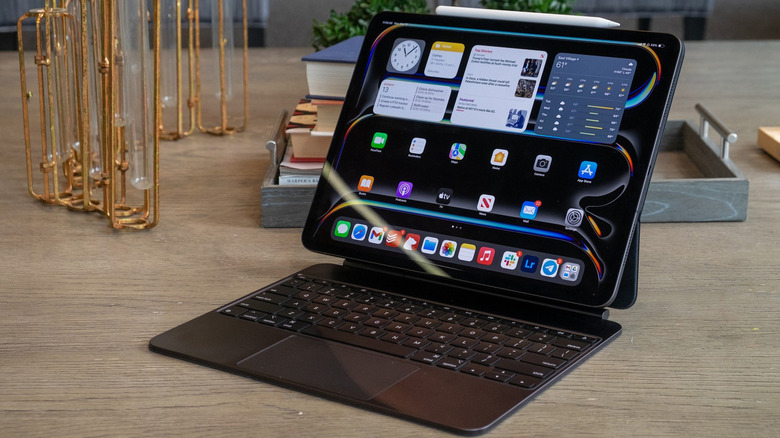
While the iPad itself (no matter the model) is thin and light, the situation changes a bit when you start adding accessories. And if we're talking about a laptop replacement, you need a keyboard case at minimum. Ideally, you have one with a built-in trackpad (or use an external mouse). Planning to do writing or sketching? Throw in an Apple Pencil. Put it all together, and the iPad arguably becomes a clunkier, more cumbersome setup than most laptops.
The cost adds up, too. At the high end, an iPad Pro with a Magic Keyboard and Apple Pencil can easily cost as much as, if not more than, a MacBook Air or even a price-hiked MacBook Pro. At that point, you're paying for versatility.
That isn't to say an iPad provides an overly heavy setup or something that's truly difficult for most people to carry. It still makes sense if touch, Pencil support, cellular connectivity or overall tablet use are important to you. But if what you really want is to do what a laptop can do, then you may want to just get a laptop.
Maybe 90 percent of the way is enough
Perhaps the best way to frame an iPad purchase is not fully as a replacement for anything else. It's its own device.
For many people, the ideal setup is an iPad as the go-to portable computer, with a Mac or PC at home for hardcore work: programming, specialized software or anything that becomes clunky on iPadOS.
If your workflow is already as simple as a browser and a handful of good touch-friendly apps, then you probably don't need the PC or Mac part. But if you depend on desktop-only software or complicated multitasking, it becomes a tricky proposition. Then the question is less about an iPad replacing a laptop and more about how much that last 10 percent bugs you.