

How to reset an Apple TV remote
Tips for fixing connection issues with the remote for Apple's streaming box.
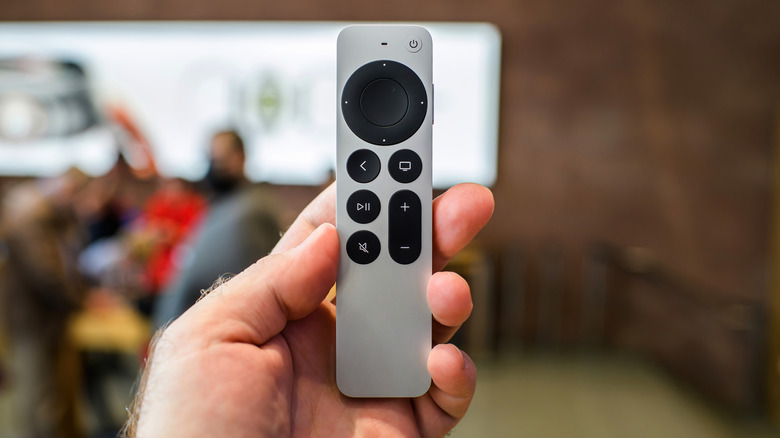
If you have an Apple TV, one of our picks for the best streaming devices, you are probably using the dedicated Apple TV remote to control it. This sleek and slim remote is super easy to use, ultra-small (so it's easy to lose as well!), and has only the key buttons you need without other complicated options to confuse grandma when she's housesitting and wants to watch her daytime soaps.
Sometimes, the remote can lose its connection or become unresponsive. Maybe it's technically working but cuts in and out or some buttons don't work. Another reason you might want to reset the remote is if you're selling the Apple TV or giving it to a friend or family member. Don't worry, it's probably easy to get it working again. First, you can troubleshoot some common problems. If none of those methods work, you can reset the remote to get it working once again or revert to original settings for a new user.
How to do a quick reset of the remote
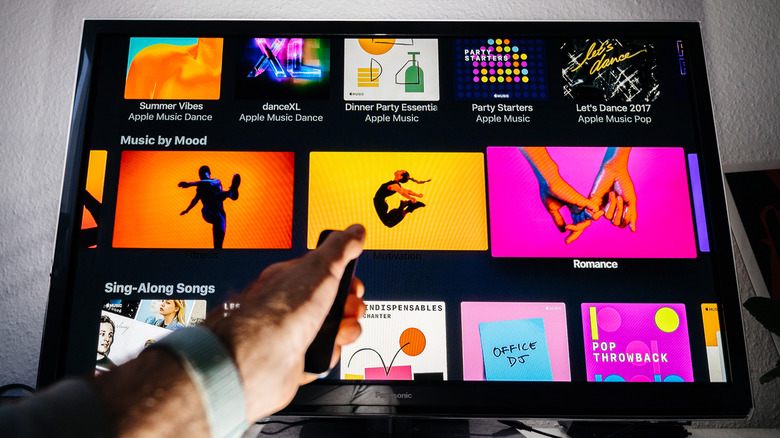
If you own a first-gen or later Siri Remote, unplug the Apple TV for at least six seconds, press the TV/Control Center and Volume Down buttons for five seconds and wait for a disconnect message to pop up. From there, press and hold Back or Menu and Volume Up at the same time for five seconds to re-pair the remote with the Apple TV. For aluminum or white Apple TV remotes, point it at the TV and press Menu and Home for six seconds. When the status light starts to blink, press and hold Menu and Right for six seconds to reset. This should fully kickstart the system and the remote's connection.
You can also restart the remote itself by pressing and holding the TV/Control Center and Volume Down buttons for about five seconds, until the Apple TV status light flickers off and on. Release the buttons and wait up to 10 seconds, then press any button. If you see "Remote Connected" pop up on screen, you have fixed the issue. If not, you can try to re-pair the remote.
To re-pair the remote, point it at the Apple TV, about three inches away from the device. Press and hold the Back button or Menu alongside Volume Up for five seconds. You may be asked to position the remote atop the Apple TV to complete the pairing process, so make sure there's space to do so. You can unplug, wait up to 10 seconds, and plug the Apple TV back in then try again if this doesn't work the first time.
Other troubleshooting tips
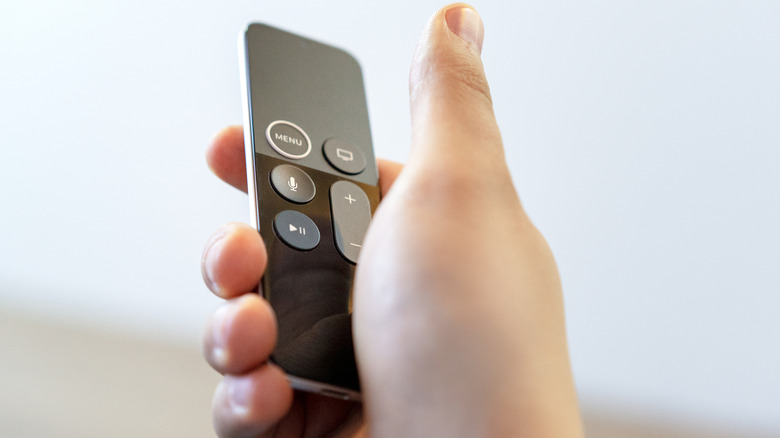
There are many reasons your Apple TV remote might not be responsive, like lack of power, signal loss, or Bluetooth pairing issues. Before you move forward with a reset, rule these issues out first. Go to Settings, Remote and Devices, Remote, and Battery Level to check the remote's battery. If you have an older Apple TV remote and the battery needs to be replaced, remove the battery cover with a coin (aluminum models) or paperclip (white models) and insert a new one. If you have a newer remote with a built-in rechargeable battery, recharge it. Even if the battery is fine, go to Settings, System, Restart and restart the entire system to fix a potential signal loss or Bluetooth pairing issue.
If you try to re-pair noting the aforementioned instructions and it doesn't work, it could be that signal strength is the issue. Go to Settings and select Remotes and Devices, then Remote from your Apple TV. This method, it should be noted, works on Apple TVs with tvOS 18.0 or later. On this page, you can see the Bluetooth RSSI signal strength indicating if it's weak or strong. You may need to move closer to the Apple TV to amplify the signal and remove anything that might be blocking the path between the remote and media streamer. If you find the signal gets stronger, you might need to reposition the Apple TV.
A last resort if the remote still isn't working is to try a full-on factory reset. This will wipe all your settings, content, downloaded apps, and personal account information. It's like starting all over again with a new product. You could also consider using a mobile device like your iPhone or iPad as a remote for the Apple TV. In fact, this is a good way to repurpose an old iPhone, using it as a dedicated Apple TV remote. Pull down from the top, right of the mobile device screen to open Control Center and you'll see a tiny remote icon for controlling a connected Apple TV.
Otherwise, look into warranty coverage or repairs if you think the remote has malfunctioned or no longer works. You can also connect with Apple support for additional help. Don't forget to make sure the Apple TV software is update to the latest tvOS as well, or upgrade to a newer model like the Apple TV 4K if you think it's time.