

How to check your iPhone's battery health and cycle count
You'll be glad to know if you're buying used.
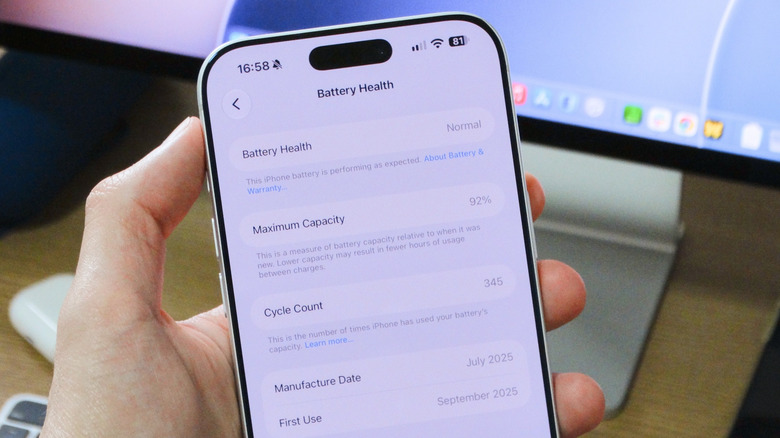
When you buy a new iPhone, you expect it to last. However, all rechargeable batteries are consumable components that chemically degrade over time. As a battery degrades, it can hold less charge, which ultimately affects your device's daily use. Apple provides built-in tools that help you monitor cycle count — the number of full discharges and recharges it has undergone — and overall battery health. Understanding these metrics is essential for knowing if the batter is working as expected, when it might be time for a replacement or for better understanding the condition of a used iPhone before you buy it.
Checking your iPhone's battery health is a pretty simple process. To get started, open the Settings app on your iPhone, tap Battery and look for the Battery Health section. On some older models, such as the iPhone 13, this section is called Battery Health & Charging. This screen will show you an estimate of your iPhone's battery capacity relative to when it was new, along with other useful information.
What the health numbers actually mean
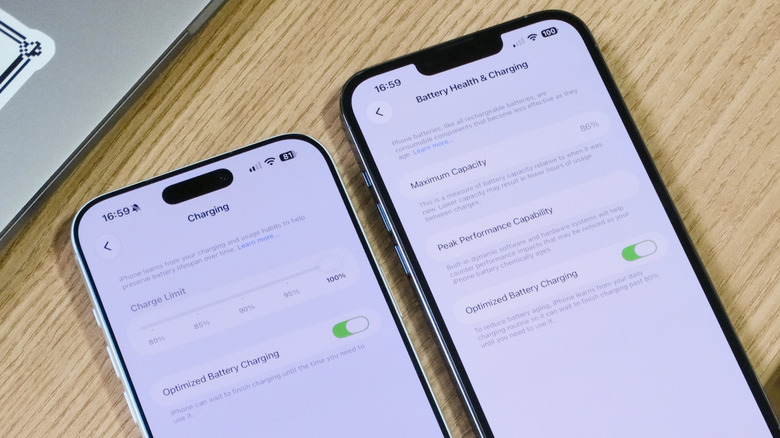
The Maximum Capacity percentage gives you a better idea of the overall condition of your iPhone's battery. According to Apple, a typical battery is designed to retain up to 80 percent of its capacity when operating under normal conditions. For the iPhone 15 and later models, this estimate is based on 1,000 full charge cycles. For older models, the estimate is that the battery will last up to 500 cycles before degrading significantly. When the battery health drops below 80 percent, your iPhone may still work, but you'll likely notice a significant decrease in battery life.
In some cases, iOS may even enable additional performance management features to prevent the iPhone from shutting down unexpectedly due to a severely degraded battery. In that case, you'll see a warning below the Peak Performance Capability section. If you don't see anything, it likely means your iPhone hasn't had any battery issues and is still running at full performance.
To help preserve your iPhone's battery health, you can enable the Optimized Battery Charging option in the battery settings. When enabled, this feature learns your daily routine and when you typically charge your iPhone, so that it temporarily pauses charging at 80 percent and only completes the charge to 100 percent around the time you need to use your iPhone again. On the iPhone 15 and later, you can also set a maximum charge limit for your device, which also helps preserve battery health for longer.
How to check your cycle count and why it matters
If you have an iPhone 15 or newer, Apple provides an easy way to check the cycle count directly in the Settings app. Go to Battery > Battery Health, and scroll down to find your cycle count. If you're using an older model, Apple doesn't provide battery cycle statistics natively. This means you'll have to rely on third-party alternatives, such as the popular Mac app coconutBattery, to check your iPhone's battery cycle count.
Knowing your device's battery cycle count can be helpful for understanding its long-term lifespan, as well as how heavily you've been using your device. iPhone 15 models and later are rated to retain good battery health for up to 1,000 full charge cycles before experiencing battery issues, while older models are rated for up to 500 cycles. For reference, 1,000 cycles works out to two or three years' use in under real-world conditions.
Keep in mind that one cycle represents expending 100 percent of your battery's current capacity, though not necessarily all at once. For example, if you used 50 percent of your battery, recharged your device and then used another 50 percent afterward, that counts as one complete charge cycle.
Reaching these numbers doesn't mean your iPhone's battery will automatically fail, but it does mean its capacity will typically be lower, so you may notice shorter battery life. If your iPhone's battery health is below 80 percent or if it has reached 1,000 charge cycles, you should consider replacing the battery to keep your phone running smoothly. To do so, your best option is to contact Apple Support to arrange for a replacement.