

How to change and customize your Apple Watch face
You can do more than just switch between faces.
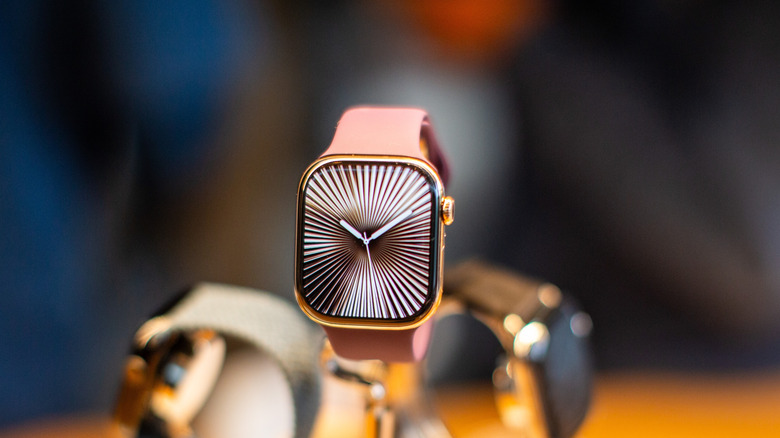
Few products are as stylish and practical as the Apple Watch. Equal parts fashion statement, notification hub and fitness tracker, Apple's flagship timepiece is considered an essential gadget for its millions of users. And while the Cupertino giant continues to add new features, including an AI-infused Siri update that has some users buzzing about a future of wrist-bound supercomputers, you're never going to be fully satisfied with your Apple Watch if it doesn't match your aesthetic.
Of course, swapping out your watch's bands can help add additional flair. But, as with its analog counterparts, the stylistic magic is in the watch face. Luckily, Apple offers hundreds of faces, features and color schemes. So before you start shopping for Apple Watch alternatives in order to add some stylistic variety to your wrist-closet, it is smart to fiddle with your Apple Watch's face settings to unlock a host of slick looks and features.
Now, before we dive into the minutiae of editing your Apple Watch's digital face, it's important to note the centrality of the company's Watch app. A gateway into your watch's advanced features and customization tools, the app is an essential tool for Apple Watch users. Luckily, the application comes preloaded to your iPhone. With that said, you'll need to ensure that your watch and phone are paired in order to maximize your experience. To learn how to do so, visit Apple's support page.
Once paired, you can sync your calendars, contacts, email and notifications with your wristwatch to maximize its functionalities. The application also expands your customization options, allowing you to download new watch faces, use photos from your iPhone, and customize the watch's layout. Updating your watch and phone to the most recent OS can ensure you have access to these advanced features.
Changing your Apple Watch face
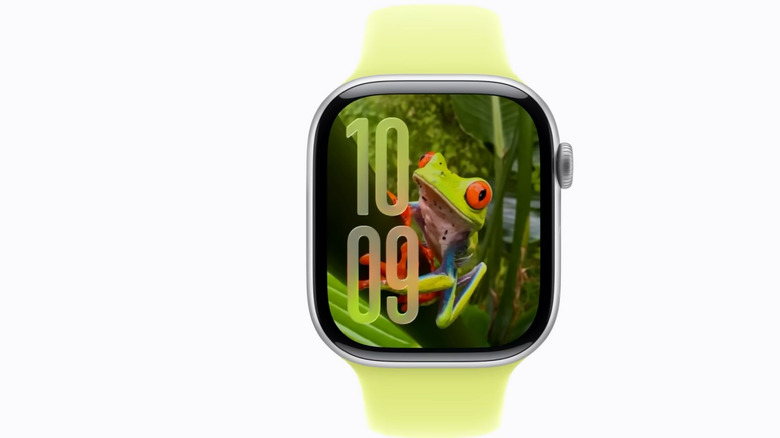
To start personalizing your watch face, open the Watch app and tap the Face Gallery tab, where you'll find a bevy of categories, including Health & Fitness, Photos, and Data Rich. To see the totality of your watch's offerings, scroll to the bottom of the Face Gallery and click the tab labeled See All Watch Faces. From there, you can scroll through Apple's various specialized watch wallpapers, ranging from those created by major brands like Nike and Disney to artistic options that offer millions of unique combinations. Once finished, add them to your watch's Face collection by hitting Get and following Apple's prompts. You can peruse a comprehensive list of Apple's Watch faces and their features on Apple's support page.
Add photos to your Apple Watch
If you would like a more personal touch, you can add your own photos to your Apple Watch's gallery. To do so, visit the Apple Watch app on your iPhone and tap Face Gallery. Then, click the Photos category, where you can choose to have your watch shuffle featured photographs, specific people in your camera roll, or a particular album in your Photos app. To select one of these options, click Shuffle and Collection to select your photo options. If you would like to manually select the photos you'd like your watch to shuffle, tap the Choose Photos option and select up to 24 pictures from your camera roll. Once you've made your selection, you can further customize your watch face by scrolling to the bottom of the application.
After you've customized the watch face to your liking, tap Add to Watch, and the photo compilation will be added to your collection. Once added, a new photo will appear as your watch's background whenever you tap on the display or raise your wrist. Importantly, Apple will shuffle between 16 photos within your designated collection each day.
If you are scrolling through your photo gallery and see one you'd like to add to your watch face, Apple has provided a nifty shortcut. Start by tapping on the photo you'd like to add in your photo gallery. Next, tap the export button you typically use to send photos in an email or text. Scroll down to the bottom and select Create Watch Face.
You can switch between the watch faces saved in your collection at any time. To do so, click and hold the display of your watch until the image shrinks into the center of the screen. From there, swipe through your selected designs until you find your desired look.
Editing complications and collections

Adding complications
You can also customize these preset faces via the Edit button at the bottom of your screen. This is where you can swap the widgets on your watch face.
Known as complications, these advanced widgets can be added either within the Watch app or directly through the Apple Watch interface. Their capabilities range from simple practicalities, like calendars, compasses and map directions, to more niche features displaying tide swells, air quality conditions and moon phases.
You can add a complication to your watch face by tapping a complication area, such as the top right-hand corner, and then selecting your desired feature from Apple's extensive list. For the full roster of available complications, visit Apple's complications section on its support page. Once your watch face is to your liking, press Add to Watch, and it will be placed in your collection.
Editing your collection
To add a new face to your Apple Watch collection directly from the watch, follow the same steps and swipe left until you see the gray plus button. Once you've hit the plus, you can tap the collection of watch faces you'd like to browse. To see all available faces, scroll to the bottom, where you will find the All Watch Faces tab. Once you've found the ideal watch face, tap the Get button next to it, then click Add.
To remove a face from your collection, press and hold your current watch face, swipe until you find the unlucky victim of your discerning taste, and swipe up. Then, tap the red garbage can icon labeled Remove. You can accomplish a similar feat within your phone's Watch app by tapping My Watch, hitting the Edit button in the My Faces tab, and clicking the red icon next to the watch face you'd like to banish from your wrist.
To view your full collection, visit the Apple Watch app and tap My Watch. Then, swipe through the collection in the My Faces section. To rearrange your collection's order, tap Edit and drag your selection to its desired location. This process can also be done on the watch directly by pressing on the display, holding your finger down on the desired watch face, and dragging it to its desired location.