

Here's how to switch from ChatGPT to Claude without losing any information
A little copy/pasting is all it takes.
If you're moving from ChatGPT to Claude, you don't have to start with a clean slate. Earlier this year, Anthropic added Claude's Import Memory feature, which lets you bring over saved context from other chatbots. Here's how to get the best results.
Goodbye, ChatGPT, hello Claude
There are a few reasons you might want to switch from ChatGPT to Claude. Maybe you like Claude's coding abilities, or perhaps you've soured on OpenAI because of its deal with the Department of Defense. If you are making the move, the good news is there isn't much of a learning curve. The main challenge is moving your saved context from one chatbot to the other — and Anthropic's import tool makes that part dead simple.
Note that you don't have to use memory at all. Claude and other AI chatbots are perfectly functional without remembering your preferences or past chats. (In that case, each new thread is a fresh start.) These steps are only for people who want to carry that context over.
How to import memory from ChatGPT to Claude
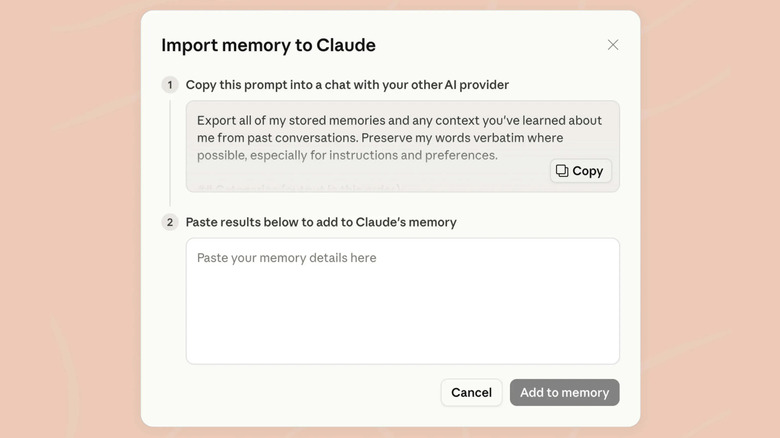
To get the best results, you'll want to set things up on both sides. These steps work on the web and in the desktop apps for Claude and ChatGPT:
- In Claude, click your profile picture on the bottom-left. Then, head to Settings > Memory. If you don't see that entry, look under Settings > Capabilities. (Anthropic is in the process of rolling out an updated interface.) Turn on Generate Memories from chats if it isn't yet activated.
- Next to Import memory from other AI providers, click Start Import.
- Click Copy next to the prompt Claude provides.
- Open ChatGPT. Click your profile picture, open Personalization, and make sure Enable Memory is turned on. (If you're only turning it on now, you'll want to wait a few hours while it updates your memories.)
- Optionally, switch the ChatGPT model from Auto to Thinking using the keyboard shortcut Shift-Ctrl-M. Thinking mode allows ChatGPT to pull together a more thorough summary.
- Paste Claude's prompt from step 2 into a new chat in ChatGPT and run it. It should generate a block of text summarizing your saved context. Copy the full output.
- Back in Claude, paste ChatGPT's output into the import field and click Add to memory.
Of course, this feature isn't limited to ChatGPT. If you're moving from Gemini, the same basic process applies. You just need to turn on its memory feature under Settings > Personal Intelligence > Memory before entering Claude's import prompt and pasting the result back into Claude.
Confirming the import
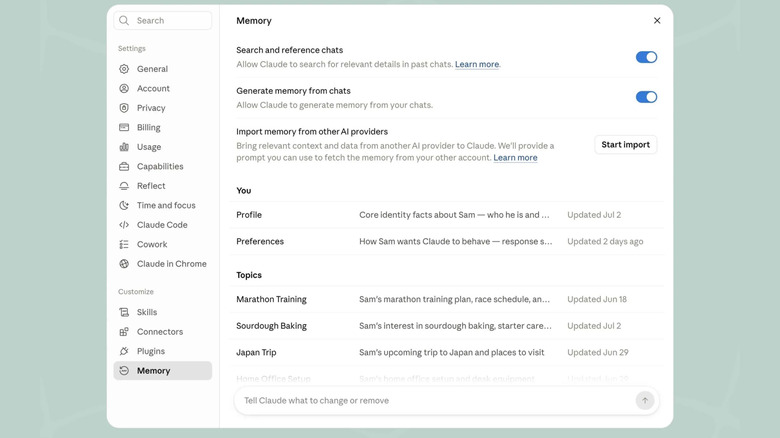
Anthropic says it can take up to 24 hours for the import to finish. So, don't panic if Claude's answers don't seem to incorporate your old context right away.
After that, you can review what Claude remembers in Settings > Memory (or Settings > Capabilities > Memory from your chats if your account still uses legacy settings).