

iOS 27 beta has arrived: Here's how to get it on your iPhone
How to sign up for the developer beta for the iPhone, iPad, Mac and more.
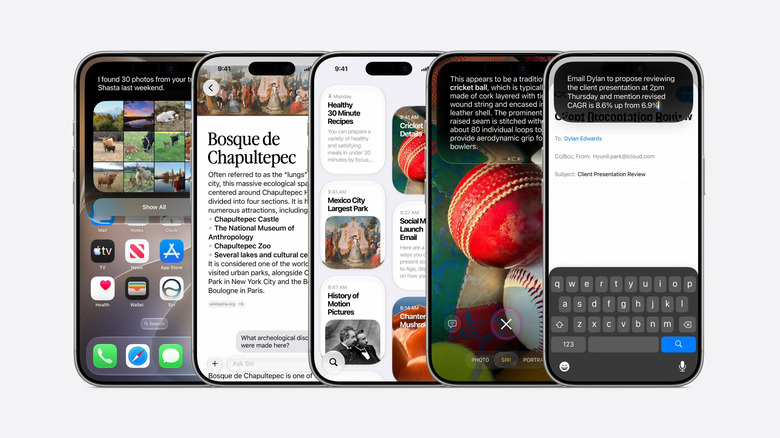
Apple's recently announced iOS 27 update won't officially ship until the fall, but you can get a taste of the performance improvements and new Siri features the company showed off at WWDC 2026 by downloading a developer beta today. Apple has made betas available for iPhones, iPads, Apple Watches and more, but you should be aware of what you're getting yourself into before you move forward.
Running beta software is not without risks. Always back up your device before running a dev beta on it. Ideally you should also install the beta on a secondary device rather than your personal iPhone. This year, since Apple is rolling out Siri AI in beta, you'll also need to sign up for a waitlist before you can access the new Siri app.
Messing around with buggy software isn't for everyone. Early developer betas are typically missing some of the shinier new features, and can impact battery life and general stability. Luckily, if you don't want to take such a big gamble with your hardware, Apple typically offers a more-polished version of its software via a free public beta program in July or August.
How to register as an Apple developer
You can register as an Apple Developer account online in Apple's developer portal or through the Apple Developer app on your iPhone or iPad if you have a passcode or Face ID enabled. Note that you only need to be registered to access betas: If you reach a screen asking you to pay $99, you've already gone through the necessary steps. To sign up using the app:
-
Open the Apple Developer app.
-
Tap or click the Account tab.
-
Log in with an Apple Account that has two-factor authentication enabled. (It doesn't have to be your personal account.)
-
Agree to the Apple Developer Agreement, if prompted.
-
Tap or click Enroll Now.
-
Review the benefits of the program and tap or click Continue.
-
Enter your personal information and verify your identity with a driver's license or some other kind of government ID.
-
Confirm the information you entered by pressing Continue.
-
Select Individual.
-
Agree to the terms of the Apple Developer License Agreement.
-
Tap or click Subscribe to sign up for an Apple Developer account.
Once you're set up, you'll use the Apple Account you associated with your Apple Developer profile to download the betas onto your device. If you were already logged in when you signed up, restarting your iPhone should be your next step.
iOS 27 supported devices
Thanks to Apple's purported focus on making all of its latest operating system updates more efficient and performant, the iOS 27 developer beta actually works with all the same iPhones that iOS 26 did. To run iOS 27 you'll need one of the following models:
-
iPhone SE (2nd generation or later)
-
iPhone 11
-
iPhone 11 Pro
-
iPhone 11 Pro Max
-
iPhone 12 mini
-
iPhone 12
-
iPhone 12 Pro
-
iPhone 12 Pro Max
-
iPhone 13 mini
-
iPhone 13
-
iPhone 13 Pro
-
iPhone 13 Pro Max
-
iPhone 14
-
iPhone 14 Plus
-
iPhone 14 Pro
-
iPhone 14 Pro Max
-
iPhone 15
-
iPhone 15 Plus
-
iPhone 15 Pro
-
iPhone 15 Pro Max
-
iPhone 16e
-
iPhone 16
-
iPhone 16 Plus
-
iPhone 16 Pro
-
iPhone 16 Pro Max
-
iPhone 17e
-
iPhone 17
-
iPhone Air
-
iPhone 17 Pro
-
iPhone 17 Pro Max
How to install the iOS 27 beta
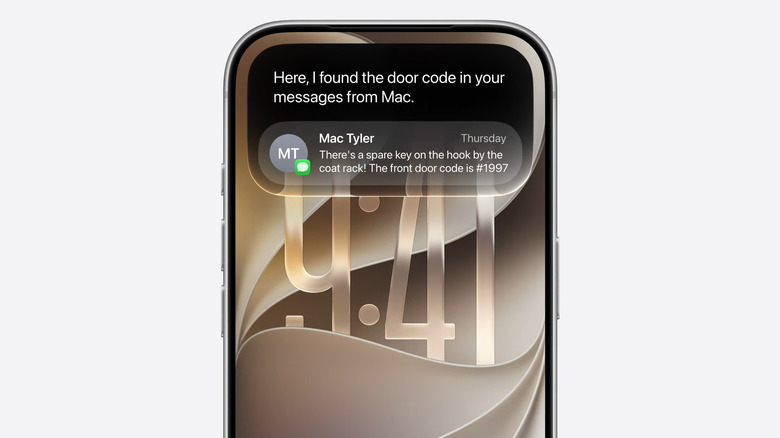
Before you move forward, make sure to backup your iPhone so that you have something to revert back to if you lose anything while upgrading to the beta.
With that taken care of, log into the Apple Account associated with your Apple Developer profile on your iPhone and head to Settings > General > Software Update. You should see the iOS 27 beta as one of the available developer betas you can download. Just tap beta to start installing it on your iPhone.
iPadOS 27 supported devices
You'll need one of the follow iPad models to try out the iPadOS 27 beta:
-
iPad mini (6th generation and later)
-
iPad mini (A17 Pro)
-
iPad (9th generation and later)
-
iPad (A16)
-
iPad Air 11-inch (4th generation and later)
-
iPad Air 11-inch (M2, M3 and M4)
-
iPad Air 13-inch (M2 and later)
-
iPad Pro 11-inch (2nd generation and later)
-
iPad Pro 12.9-inch (4th generation and later)
-
iPad Pro (M4 and later)
How to install the iPadOS 27 beta
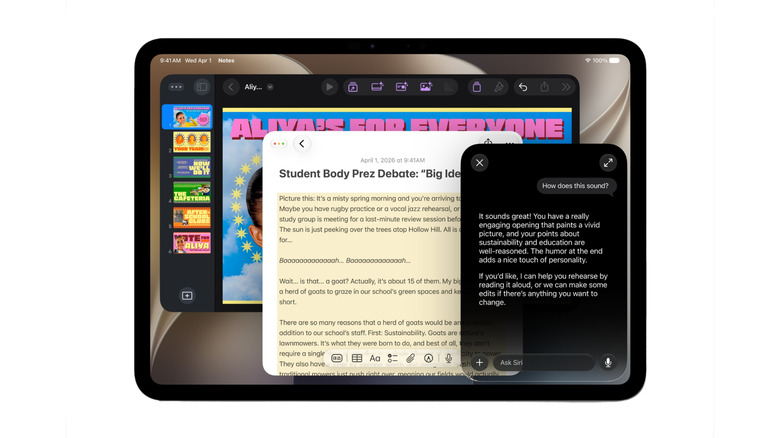
The iPadOS 27 beta installation process is similar to iOS 27. Make sure your iPad is backed up and you're logged into the Apple Account you associated with your Apple Developer profile. You won't be able to see or download the beta unless you're logged into the right account.
Then, head to Settings > General > Software Update and tap on the iPadOS 27 beta. You might be prompted to plug in your tablet to power, but the beta should start downloading and installing.
watchOS 27 supported devices
Apple says the following Apple Watch models can run watchOS 27:
-
Apple Watch SE 3
-
Apple Watch Series 9
-
Apple Watch Series 10
-
Apple Watch Series 11
-
Apple Watch Ultra 2
-
Apple Watch Ultra 3
How to install the watchOS 27 beta
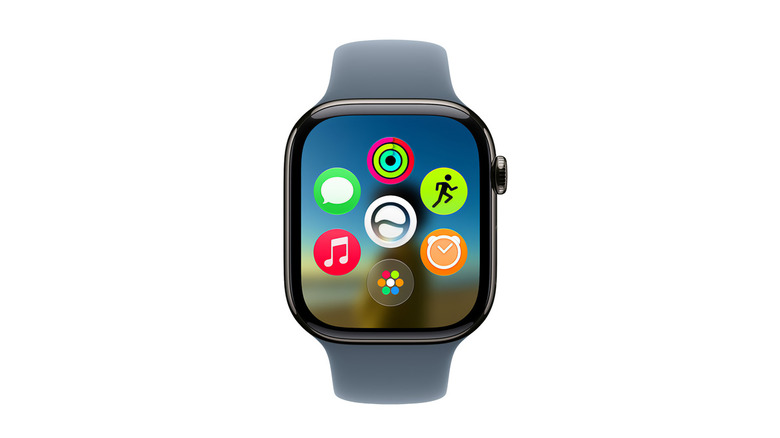
The only wrinkle with testing out the watchOS 27 beta is that you need to have already installed the iOS 27 beta on your iPhone before you can access the updated smartwatch OS. In general, watchOS betas are also harder to deal with because there's no way to downgrade to the previous operating system after you update. Perhaps more than any beta, consider installing this one an secondary device rather than your daily driver: If you want to use the watchOS 27 beta, you're stuck on it until the next stable version is released.
Accepting those glaring drawbacks, the process is similar to iOS and iPadOS. Make sure your Apple Watch is paired to an iPhone running the iOS 27 beta and then head to the Watch app. Under General > Software Update tap on the watchOS 27 developer beta to start installing it on your Apple Watch.